
IPTV not working? A five-thing checklist
Check the symptom, connection, player, account and device in order. Keep your settings and login details safe while narrowing down an IPTV problem.
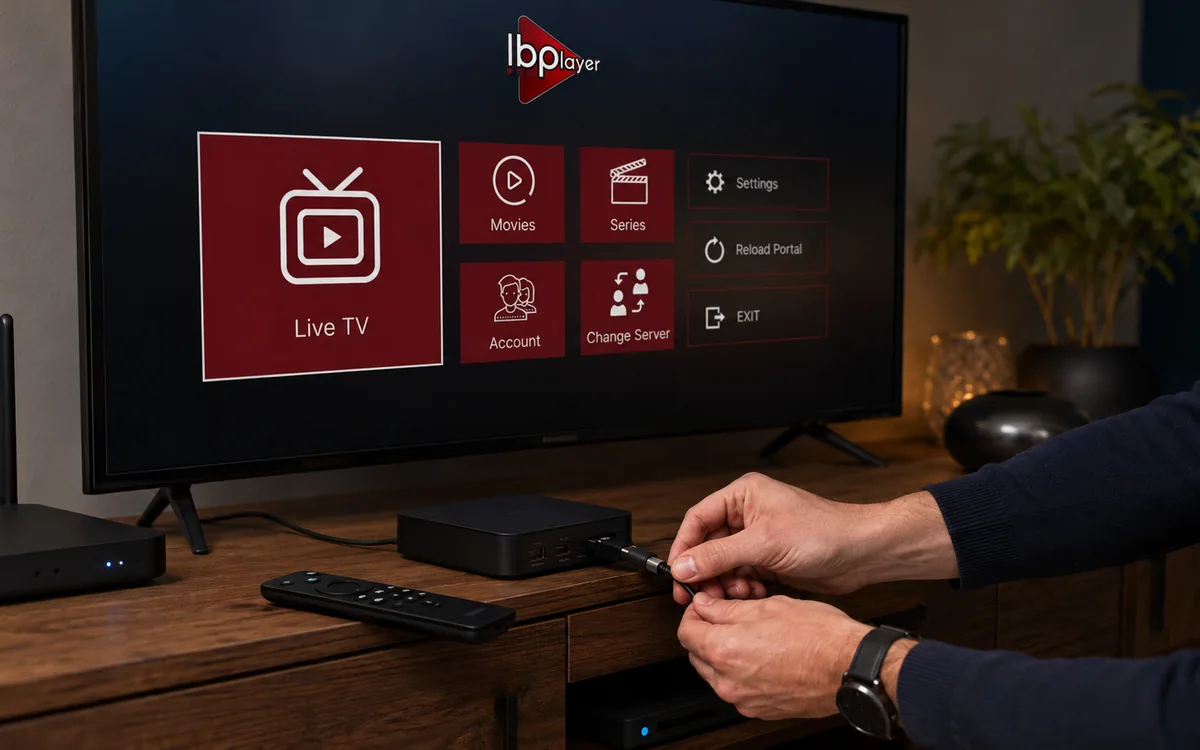
Check BingeBear on your own telly before paying.
Start a free 24-hour trial with no card. Check your channels, supported player and device, then read the current plans and activation terms.
If IPTV is buffering, freezing or failing to load, avoid changing several settings at once. Work through these five checks and record what changes. That gives support a clearer starting point and reduces the risk of losing a working setup.
1. Record the symptom
Note the exact error, device, player app, time and channel or title. Check whether one item fails or the whole service fails.
An error message is a clue, not proof of a particular cause. A failed stream alone does not establish that your provider has lost rights, your ISP is blocking access or your account is invalid.
2. Check the connection
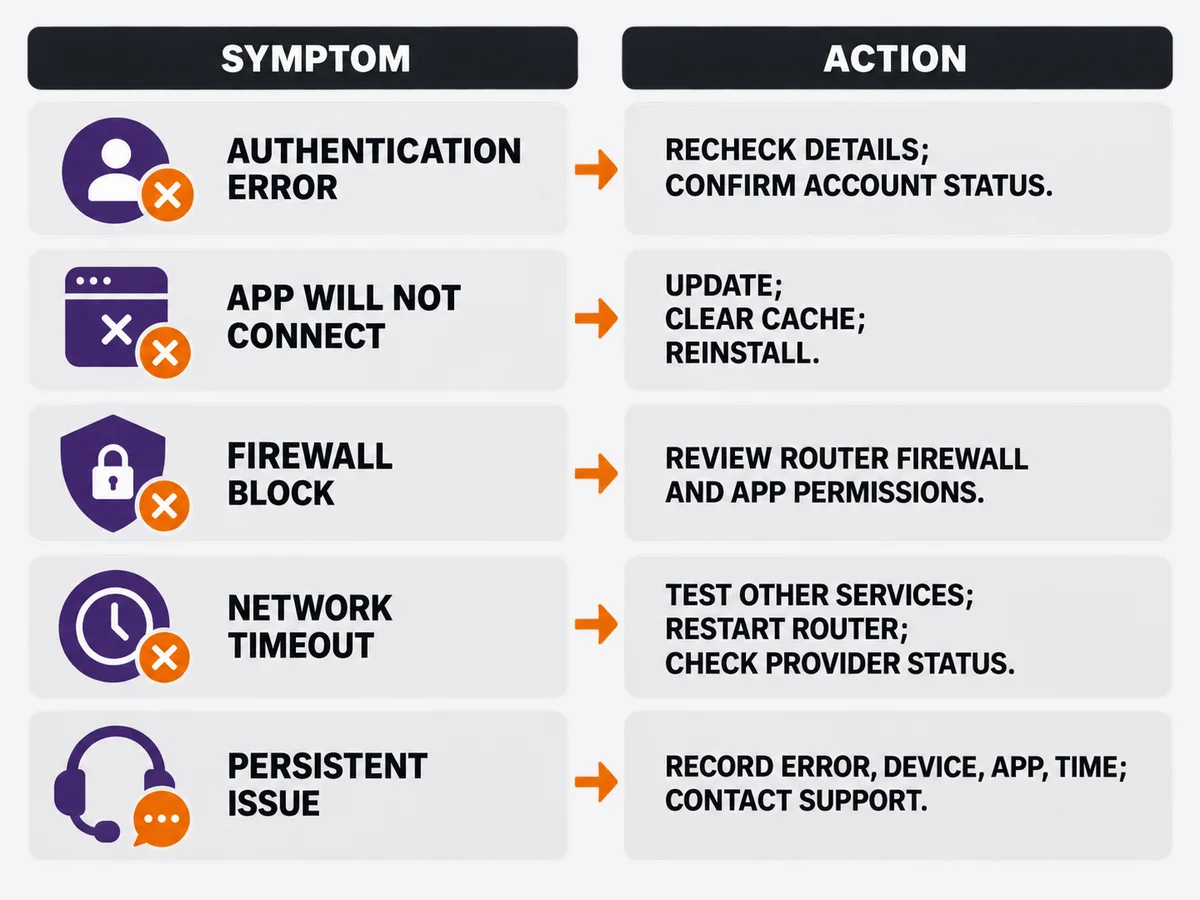
See whether other internet services work on the same device. If practical, compare Wi-Fi with a wired connection and pause large downloads while testing.
Test at the time the problem occurs. A fast speed-test result does not rule out an intermittent connection, local Wi-Fi problem or a service-side fault.
Router positioning and interference can affect Wi-Fi. Compare one change at a time rather than treating a particular speed figure as a guarantee of HD or 4K playback.
3. Restart and check the player
Close and reopen the app, then restart the device if needed. Check that the player is the supported version for your device using the setup guides.
If the device offers a cache-only clear option, keep that distinct from clearing app data. Clearing data or reinstalling can remove logins and settings. Confirm how to recover the setup before doing either.
A codec error may involve the app or device's supported video formats. Send the exact message to support rather than assuming a faster broadband plan will solve it.
4. Check the account without exposing credentials
For an authentication error, check the account term and that the correct login was entered. Ask support to verify the account if you are unsure.
Keep passwords and login details out of public posts or screenshots. If you changed device, explain whether the old one is being replaced or you need another device playing at the same time.
One account serves one device. An additional device needs the appropriate subscription or bundle account. A replacement transfer removes the old device and has a separate lifetime player activation fee; check current terms before proceeding.
5. Check the device and send a useful support message
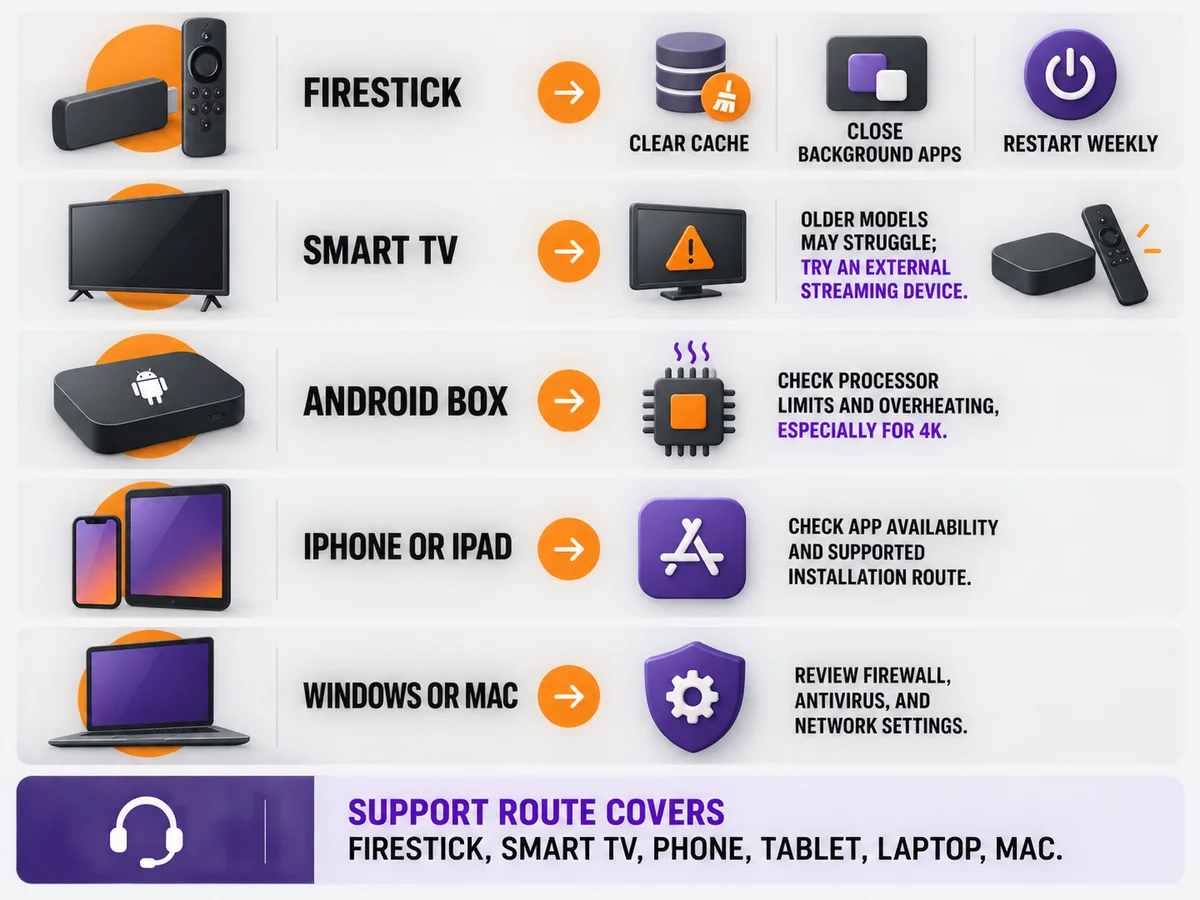
On a Firestick, smart TV, phone, tablet or computer, note the app version, free storage and whether restarting changes the symptom. Avoid disabling security controls blindly.
Send support the device, player, exact error, affected channel or title, time and checks already tried. A screenshot can help if it excludes private credentials.
Do not assume support is available 24/7 or that a specific response time is guaranteed. Use the published WhatsApp contact and ask about current availability.
Network access problems
If normal internet access works but the player cannot connect, ask the service team and broadband provider to diagnose it. This guide cannot establish whether a particular outage is a network fault, service fault or restriction.
Changing DNS, ports or using a VPN does not prove a service is licensed or fix every connection problem. Do not use this checklist to bypass a lawful restriction.
When to consider a different setup or service
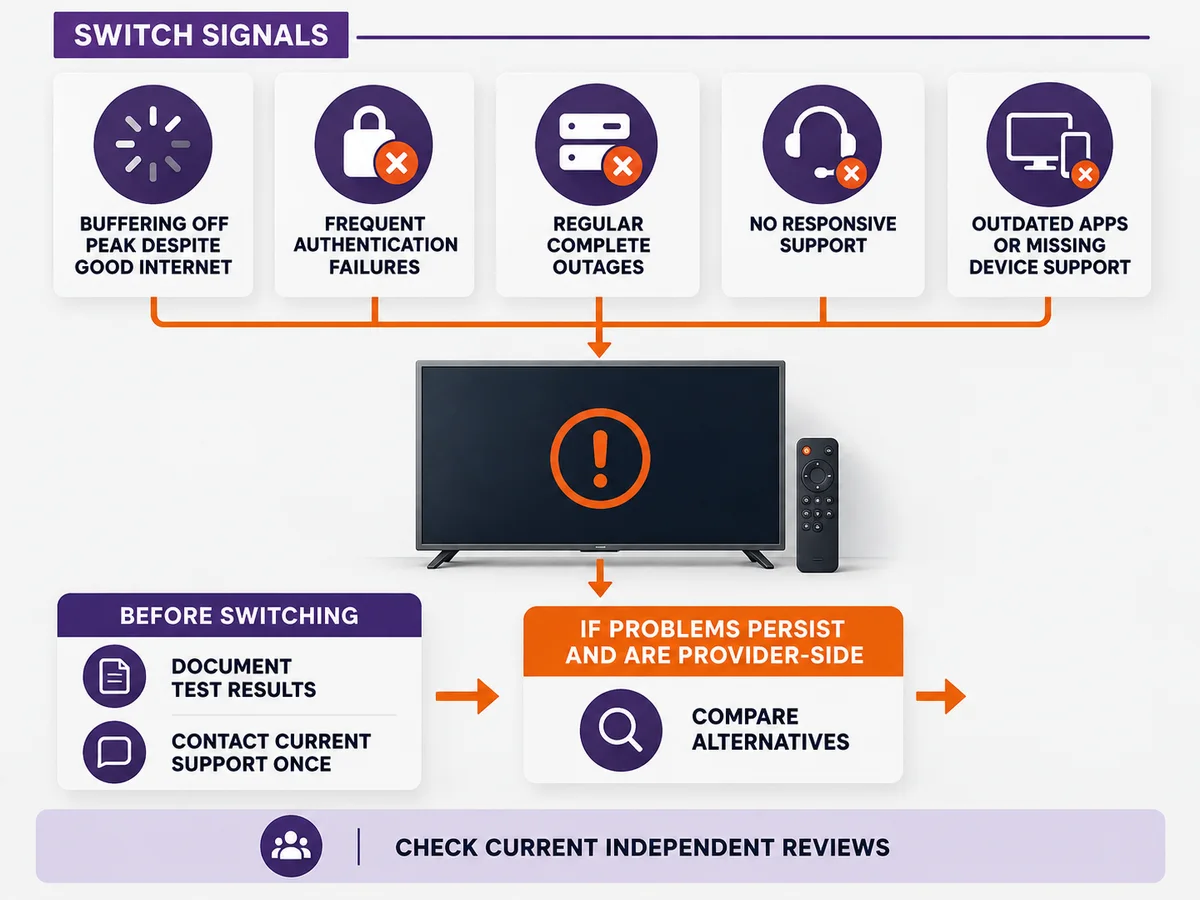
Keep a record of repeated failures and support replies. Test a proposed alternative on the same device and connection before committing to a longer subscription.
Customer reviews can describe individual experiences, but they are not a measured uptime guarantee or proof that changing providers will solve your particular issue.
Frequently asked questions
Why is IPTV not working today?
The symptom could involve the connection, app, device, account or service. Check whether one title or the whole service fails and send the exact error to support.
Should I clear all app data?
Check the cache-only option first. Clearing data or reinstalling may remove your configuration; confirm how to restore it before proceeding.
Does an authentication error mean the provider changed its servers?
Not necessarily. Confirm the account term and login with support rather than guessing from the error alone.
Will faster broadband fix buffering?
Not always. Test the connection and device at the affected time. Buffering can have more than one cause, and a speed figure alone is not a playback guarantee.
What should I send to support?
The device, player version, exact error, affected item, time and checks already tried. Keep passwords and private account details out of public screenshots.
What if I moved to a new device?
Explain whether you need an additional device or a replacement transfer. Ask about the subscription, old-device removal and player activation charge before assuming it is free.
Try your own setup before paying
The free 24-hour trial needs no card. Test the device, channels and viewing times that matter to you. Check the current plans and refund policy before purchasing.
Customer feedback
These existing customer comments describe individual experiences. They do not establish licensing, guaranteed performance or measured venue results.
David McCarthy: ‘Support is quicker than Lewis Hamilton from the grid.’
Chris Coyne: ‘Stayed with BingeBear for years — 4K, freeze-free.’
Alan Watson: ‘After years of IPTV services, BingeBear is by far the best.’
Kevin Quirke, Dublin: ‘No buffering whatsoever. The choice of channels, movies, and series is unreal.’
See Trustpilot for current independent reviews.