
IBO Player Pro IPTV Setup Guide for Firestick, Android and Smart Telly
Install IBO Player Pro with the official APK, store links, Downloader code 481220 and clear setup steps. BingeBear provides the login, not the app.
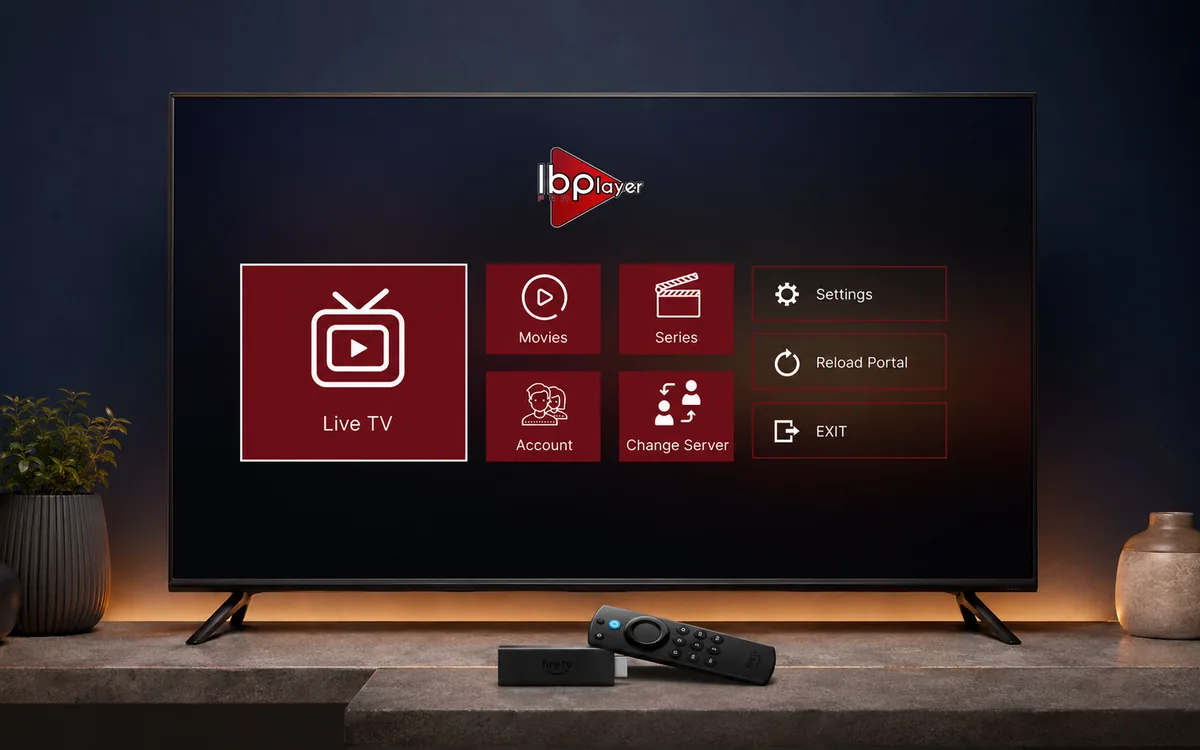
Check BingeBear on your own telly before paying.
Start a free 24-hour trial with no card. Check your channels, supported player and device, then read the current plans and activation terms.
IBO Player Pro is a third-party media player. It is not made by BingeBear and does not include channels or a playlist. Check the exact app, device and publisher before installing: similarly named IBO products can use different licences and pairing details.
The official IBO Player Pro download page lists Downloader code 481220 and the Android/Amazon Fire TV APK at https://iboproapp.com/ibopro.apk. Check the destination and exact app name before installing. IBO Player Pro and IBO Player are different player listings; use the IBO Player guide if that is the app you mean. A Downloader code is a shortcut to a download, not an activation code or a TV subscription.
App and account note
BingeBear supplies service login details, not a player app. A standard account serves one device at a time. Ask support before moving an account or adding an active screen.
Before you start
- Note the device model and operating system, including whether a Fire TV uses a compatible Fire OS version.
- Check the exact app listing, developer, supported devices and current activation terms.
- Have your trial/account details ready. Keep passwords, playlist URLs and device keys private.
- If a security warning blocks the app or the store does not support your model, stop and confirm a supported route before continuing.
Firestick and Amazon Fire TV
Check your exact model and operating system first using the Firestick compatibility and setup guide. Amazon’s device specifications list both Fire OS and Vega OS devices. The Android APK steps below are for a compatible Fire OS device. They do not make an Android APK work on Vega OS. For Vega, check a supported app on your exact model or ask support before buying activation.
- Install Downloader, published by AFTVnews, from the Amazon Appstore if it is available for your compatible Fire OS device.
- Open Downloader and enter code 481220.
- Confirm that the destination matches the official download page before installing the IBO Player Pro APK. If the code fails or the destination differs, stop and check the official source or ask support. Do not use unrelated codes or disable device protections to force installation.
- Open IBO Player Pro.
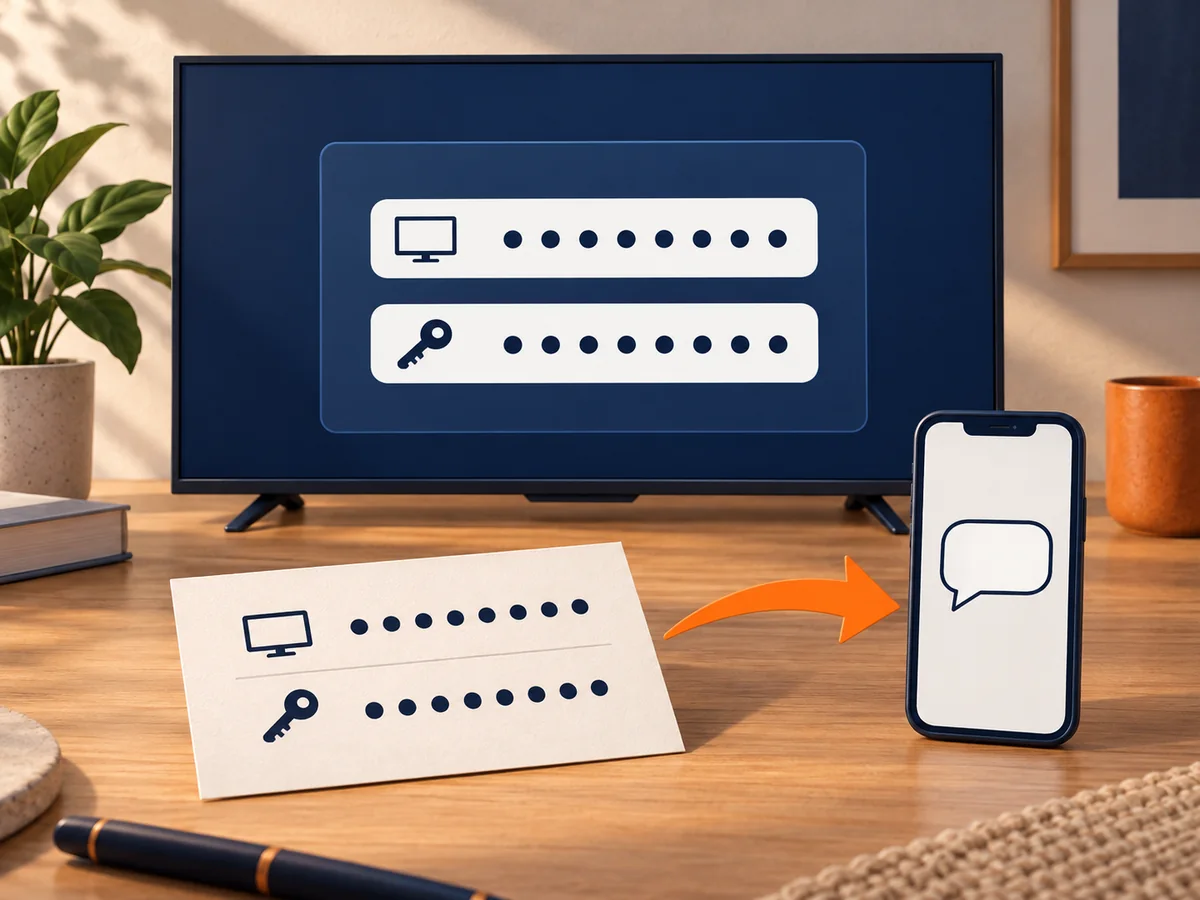
- Note the MAC address and device key shown on screen.
- Send those details to BingeBear on WhatsApp if you want us to load the playlist for you.
- Reopen the app after support confirms the playlist connection, then test the programmes and controls you need on your normal connection. A working player does not establish programme availability or distribution rights.
An Android APK route is not universal across Fire TV models or operating systems. Do not bypass a harmful-app warning. Keep device protections enabled and confirm a supported route with the publisher if installation is blocked.
Android box, Android telly and Google TV
Use a compatible Google Play listing where available. A phone app and a TV app are not necessarily interchangeable. A missing listing is a reason to check support, not an instruction to install an arbitrary APK. Keep Google Play Protect enabled. See the Android TV guide or Android phone guide.
iPhone and iPad
Use the App Store listing for the exact app agreed with support and check its developer and current iOS/iPadOS requirements. Similar names do not establish that the Android app's licence applies. Android APK instructions do not apply to Apple devices. Follow the iPhone and iPad guide.
Samsung, LG, Roku and Windows
Check the actual model and local store listing. Do not assume that a publisher's device logo proves an app is currently offered for your hardware. Samsung Tizen, LG webOS and Roku are not Android APK platforms.
For Roku, confirm a current supported Store app before paying; this guide does not establish an IBO listing for every Roku. For Windows, verify the current publisher download and installer. If SmartScreen or another protection blocks it, stop and ask the publisher rather than disabling protection.
Follow the dedicated Samsung, LG, Roku or Windows guide.
Player activation and the service are separate
A player app does not include TV channels. An app trial is separate from BingeBear's free 24-hour service trial, with no card required. Use the Ireland trial or UK trial and check the device before choosing a paid plan.
Check the current Ireland prices or UK prices in pounds. If BingeBear needs to activate a player, initial activation on the six- and ten-month plans is €15 in Ireland or £13 in the UK. A working compatible player has no initial activation charge. Initial activation is included on the 24-month and Lifetime plans. For new six- and ten-month purchases on Saturday or Sunday in Irish local time, initial activation is free. Confirm the full quote before paying.
Payments made directly to a player publisher have that publisher's own current price and terms. Do not assume a similarly named app uses the same licence or that an app payment buys a BingeBear account.
Moving your BingeBear account to another device is free on every plan and preserves the remaining service term; access on the old device ends. If the destination player needs activation, the separate player charge is €15 or £13 on every plan. An already activated, working player has no new activation charge. Keeping another screen active needs a separate account.
Service and the 90-day guarantee start at first payment. Separately charged player activation is non-refundable. Read the refund policy before paying.
Official source notes
The IBO Player Pro publisher page separates its player from content and playlists. Confirm the exact current app and its terms there. The Google Play Protect guidance explains app safety checks; keep those protections enabled.
Video walkthrough
The IBO tutorial playlist is a visual reference. Menus and availability can change, so check the current publisher and device instructions before repeating a step.
If IBO Player Pro does not fit
Ask support to confirm a compatible alternative for the exact device. Do not pay for several similarly named apps while troubleshooting. Use the player comparison and download hub to check the available routes.
Related setup guides
- Best IPTV player apps for BingeBear
- IBO Player setup
- BOB Player setup
- How many devices does BingeBear work on?
- Free Ireland trial or free UK trial, both 24 hours with no card required