IPTV not working? A calm, step-by-step fix for UK homes
Most IPTV problems in UK homes come down to Wi-Fi, an app that needs clearing out, or a fault at the provider. Here is the order to check things in, from two-minute fixes to the longer ones.

Everyone sorted
Check BingeBear on your own telly before paying.
Start a free 24-hour trial with no card. Check your channels, supported player and device, then read the current plans and activation terms.
*Updated September 2026.*
If your IPTV is not working, start with three simple checks: restart the device and the router properly, see whether other apps such as YouTube or BBC iPlayer play on the same telly, and ask your provider if there is a known problem. Most faults in UK homes come down to Wi-Fi, an app that needs clearing out, or an issue at the provider's end that you cannot fix from your sofa.
Work down this guide in order and stop when it is sorted.
The two-minute checklist
Do these first. They clear up more problems than everything else here put together.
- Restart the device properly. Pressing the power button on the remote usually only sends a stick or smart TV to sleep. On a Firestick, hold Select and Play/Pause together for about five seconds, or go to Settings, My Fire TV (called Device & Software on some models), then Restart. On a smart TV, switch it off at the wall for a minute.
- Restart the router. Switch it off at the wall, wait 30 seconds, switch it back on, and give it a few minutes to come fully back up before testing.
- Try another app. Open YouTube or BBC iPlayer on the same device. If those buffer too, the problem is your broadband or Wi-Fi, not the IPTV service. If they play fine, the problem is more likely the IPTV app or the service itself.
- Ask your provider. Send a quick message asking whether there is a known issue. If something is down for everyone, nothing you do at home will fix it.
If you use a VPN, turn it off and test again, as it can slow the connection.
Buffering or freezing, especially in the evening
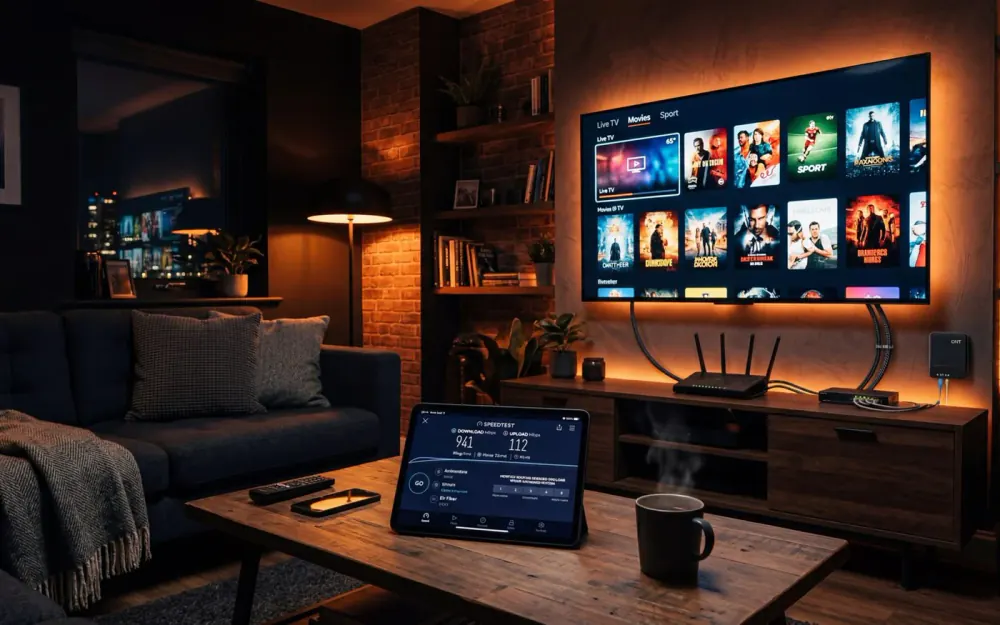
When IPTV keeps buffering, the cause is usually in the house rather than at the provider. The clue is timing: if the picture is fine at lunchtime and freezes at nine on a weeknight, that is when everyone in your home and street is online. Our guide to internet speed for IPTV covers the numbers. This section is about getting a steady signal from the router to the telly.
Wi-Fi or a cable
A cable beats Wi-Fi every time. If your telly or box has an Ethernet port and the router is close enough, plug it in. It is the single change that sorts out the most buffering.
A Fire TV Stick has no Ethernet socket of its own, but Amazon sells an official Ethernet Adaptor that plugs into the stick's USB power port. Check your model is listed on the product page before you buy.
2.4GHz and 5GHz
Most home routers send out two kinds of Wi-Fi at once.
- 2.4GHz reaches further and gets through walls better, but it is slower and more crowded, because it is shared with the neighbours' networks and gadgets such as baby monitors.
- 5GHz is much faster over short distances, but it weakens quickly through walls and floors.
For a telly in the same room as the router, or one room away, 5GHz is usually the better choice. For a telly at the far end of the house, 2.4GHz can hold up better, although a cable, mesh Wi-Fi or powerline (all below) is the proper fix.
What your BT, Sky or Virgin Media hub is doing
Most UK broadband hubs show a single Wi-Fi name and decide for themselves which band each device uses. This is called band steering. Now and then a stick ends up parked on the slower band.
- BT Smart Hub 2. The home version does not let you split the two bands into separate names. You can switch the 5GHz band off and on in Hub Manager (type 192.168.1.254 into a web browser on a device connected to the hub), which is sometimes useful for testing. Remember to switch it back on afterwards.
- Sky Broadband. The white Sky Max Hub cannot split its bands either, and most of its settings are in the My Sky app. The older black Sky Broadband Hub lets you untick "Synchronise 2.4GHz and 5GHz settings" at 192.168.0.1 and give the 5GHz band its own name.
- Virgin Media Hub 5. Virgin's Intelligent WiFi uses band steering to nudge devices onto the best band. You can log in at 192.168.0.1 (the password is on the sticker on the hub) and, under Advanced settings and Wireless, give the 5GHz band a different name so you can connect the telly to it directly.
Menus change with software updates, so if something is not where described, your broadband provider's help pages can take you through it. Write down any setting before you change it.
Where the router sits
Ofcom's advice is to keep it away from other electrical kit that can interfere with the signal, such as microwaves, baby monitors, cordless phones and fairy lights.
Get it up off the floor, out of cupboards, and out from behind the telly.
Mesh Wi-Fi and powerline
If the telly is simply too far from the router, there are two options that do not involve drilling.
- Mesh Wi-Fi uses extra units (discs or pods) placed around the house that work together as one network. Broadband providers often sell their own.
- Powerline adapters carry the internet through your home's electrical wiring. One plugs in near the router, the other near the telly, with a short cable into the telly or box. They work best plugged straight into a wall socket rather than an extension lead, and results depend on the age and layout of your wiring.
Other devices hogging the line
A games console downloading an update, a laptop backing up photos, or three phones on video calls in different rooms all take a share of your broadband. If buffering happens at the same time every evening, look at what else is running then. Pausing a big download during the match makes a real difference.
Fixes inside the app
If YouTube and BBC iPlayer play fine and only the IPTV app misbehaves, the fix is usually in the app itself.
Clear the cache
Apps build up temporary files over time, and these can slow things down. On a Firestick, go to Settings, Applications, Manage Installed Applications, choose your IPTV app, then Clear cache.
Leave "Clear data" alone unless your provider asks you to use it. It resets the app completely, so you will need to enter your login and playlist details again.
Buffer size, player and decoder
Most IPTV player apps have a Player or Playback section in their settings. Three settings are worth knowing about.
- Buffer size. A bigger buffer loads a few extra seconds of video ahead of time, so short dips in your connection do not show on screen. Channels take a moment longer to start.
- Player. Some apps let you choose between more than one built-in player. If one stutters, try another.
- Decoder. Hardware decoding uses the device's own video chip and is usually smoother. If you get a black screen with sound, a green screen or blocky glitches, switch to software decoding and test again.
Change one setting at a time and test before changing the next. Our guides to TiviMate and IPTV Smarters Pro show where these settings live in each app.
Update the app and the device
Check for an update to the app in your device's app store, and for a system update on the device. On a Firestick, go to Settings, My Fire TV (or Device & Software), About, then Check for updates. Only ever install apps from the official app store on your device or the developer's own website.
IPTV not working on a Firestick
A few points apply only to Amazon's sticks.
- Use the Network Status tool. Go to Settings, Network, and press Play/Pause on the remote. It shows whether the problem is between the stick and your router, or between your router and the internet.
- Move the stick out from behind the telly. Most Fire TV Sticks come with a short HDMI extender cable. Using it moves the stick away from the back of the set, which can improve the Wi-Fi signal it picks up.
- Check which model you have. Some newer Fire TV devices run Amazon's Vega OS, which handles apps differently. Our Vega OS guide explains what that means for IPTV.
"Login failed" or authentication errors
If the app says your login failed or could not authenticate, it is usually one of these.
- A typing slip. Usernames and passwords are case-sensitive. Look for a stray space at the end, a capital I that should be a lowercase l, or the letter O in place of a zero.
- The server address. If your app asks for one, it has to be typed exactly as your provider sent it, including the http:// at the start and any number after a colon at the end.
- The account has ended. Check your subscription is still active.
- Too many devices. Most logins cover one device at a time. If someone else in the house is watching on another device with the same login, one of you may be refused.
- The date and time on the device are wrong. This can stop secure connections working. Set the device to update its time automatically.
If everything checks out and it still fails, message your provider, who can check your account from their end.
EPG not loading
The EPG (electronic programme guide) is the grid that shows what is on now and next. It downloads separately from the channels, so the channels can play perfectly while the guide sits empty.
- Give it a few minutes after first setting up. A full guide takes a while to download.
- Refresh it. Look in the app's settings for an option such as Update EPG or Refresh guide.
- Check the time zone. If the device is not set to UK time, the guide can show the wrong programmes or none at all.
- Clear the app cache, as above.
- Ask your provider for the correct EPG link if it is still blank. Some apps need it entered separately from the playlist.
No sound or no picture
- Sound but a black screen. Switch the decoder between hardware and software in the app settings, then try a different channel.
- Picture but no sound. Check the telly and any soundbar are not muted and are on the right input. On a Firestick, go to Settings, Display & Sounds, Audio, Dolby Digital Output, and try turning Dolby Digital Plus off, which helps if your telly or soundbar does not support that format.
- Neither. Unplug the HDMI cable at both ends and push it back in firmly, then try a different HDMI socket on the telly.
Only some channels failing
If most channels play and a handful will not, the fault is almost never at your end. Individual channels can drop on the provider's side, and only they can bring them back. Note which channels, the time and any error message (a photo of the screen is ideal), and send it to your provider.
Quick reference: symptom, cause and fix
| Symptom | Likely cause | What to try |
|---|---|---|
| Buffers every evening, fine in the day | Busy home network or broadband at peak time | Ethernet cable, pause big downloads, move nearer the router |
| Buffers on the telly, fine on a phone by the router | Weak Wi-Fi reaching the telly | 5GHz band, move the router, mesh Wi-Fi or powerline |
| Every app buffers, not just IPTV | Broadband or router problem | Restart the router, contact your broadband provider |
| Only the IPTV app is slow or freezing | App cache or settings | Clear cache, raise buffer size, update the app |
| "Login failed" or "authentication" error | Typing slip, ended account, too many devices | Retype details, check subscription, message provider |
| Programme guide is blank | EPG not downloaded or wrong time zone | Refresh EPG, set UK time, ask provider for EPG link |
| Sound but no picture | Decoder setting | Switch between hardware and software decoder |
| Picture but no sound | Audio output or soundbar setting | Check mute and input, turn off Dolby Digital Plus |
| A few channels will not play | Fault at the provider's end | Message provider with channel names and time |
| Nothing works at all | Outage or account problem | Check with provider before changing settings |
When it is the provider's fault, and what good support looks like
Channels that are down, server faults and account issues all sit with the provider.
Good support is easy to recognise. A real person replies within a reasonable time. They ask what device you are on and what you can see on screen, rather than pasting a script. They tell you straight when the fault is theirs. And you can reach them somewhere you already use, so you can send a photo of an error message.
At BingeBear, support is on WhatsApp with a real person, the same place we help you install the app in the first place. If you are weighing up a new service, the free 24-hour trial needs only a name and a WhatsApp number, with no card and no contract, so you can see how it runs on your own broadband and your own telly before paying anything. Plans are on the UK pricing page.
The short version
Restart the device and router properly, check another app, get the telly onto a cable or good 5GHz Wi-Fi, and clear the app cache. If only some channels fail, or nothing works at all, message your provider, because that one is theirs to fix.
Frequently asked questions
Why is my IPTV not working all of a sudden?
The most common causes are a device or router that needs a proper restart, weak Wi-Fi reaching the telly, an app that needs its cache cleared, or a fault at the provider. Restart the device and router first, then check whether YouTube or BBC iPlayer works on the same device. If they do, message your provider to ask about known issues.
Why does my IPTV keep buffering in the evening?
Evenings are when your home and your street are busiest online. Phones, laptops and consoles all compete with the telly, and Wi-Fi gets crowded. A wired Ethernet connection is the most reliable fix. Otherwise, move the telly onto the 5GHz band, pause big downloads during the match, or add mesh Wi-Fi or powerline adapters.
How do I fix IPTV not working on a Firestick?
Hold Select and Play/Pause together for about five seconds to restart it. Then go to Settings, Network and press Play/Pause to run the Network Status check. Clear the IPTV app cache under Settings, Applications, Manage Installed Applications. If Wi-Fi is weak, try the HDMI extender that came with the stick, or an Ethernet adaptor.
Why do only some IPTV channels not work?
If most channels play and a handful do not, the fault is almost always at the provider, not in your home. Individual channels can drop on the server side and only the provider can restore them. Note which channels, the time and any error message, and send that to your provider so they can check.
Why is my IPTV guide (EPG) not showing?
The programme guide is downloaded separately from the channels, so it can take a few minutes after setup. Use the refresh or update EPG option in your app settings, check the device is set to UK time, and clear the app cache. If the guide stays empty, ask your provider for the correct EPG link.
Does clearing the cache delete my IPTV login?
Clearing the cache normally keeps your login and playlist, as it only removes temporary files. Clearing data is different: it resets the app completely and you will need to enter your details again. On a Firestick the two buttons sit next to each other, so read the label before you press.