Firestick Vega OS: which Fire TV models still work for IPTV in the UK
Amazon has moved its newest Fire TV Sticks to a new system called Vega OS, and it changes which IPTV apps you can install. Here is how to tell which model you have and what to do about it.

Device ready
Check BingeBear on your own telly before paying.
Start a free 24-hour trial with no card. Check your channels, supported player and device, then read the current plans and activation terms.
*Updated September 2026.*
Amazon's newest Fire TV Sticks run a new operating system called Vega OS, and on those models you can only install apps from the Amazon Appstore. In the UK that means the Fire TV Stick 4K Select and the 2026 Fire TV Stick HD. The Fire TV Stick 4K Plus, the Fire TV Stick 4K Max, the Fire TV Cube and TVs with Fire TV built in still run the older Fire OS, which lets you add apps from outside the Appstore.
If you use IPTV, that difference decides which player apps you can put on the stick. The rest of this guide explains what changed, how to check your own model in under a minute, and what to do if yours turns out to be Vega.
What Amazon changed, in plain English
For over a decade, every Firestick ran Fire OS. Fire OS is Amazon's own version of Android, the same system that runs most phones that are not iPhones. Because it is Android underneath, a Fire OS stick can run Android apps, including ones that are not listed in Amazon's own Appstore. You switch on a setting, and the stick will accept an app from the developer's official website.
Vega OS is different. Amazon built it on Linux rather than Android. The first device to use it was the Fire TV Stick 4K Select, which went on sale in the UK in October 2025. Amazon's developer site now says plainly: "Starting with Fire TV Stick 4K Select, all future Fire TV Sticks will run on Vega." The second Vega stick, a new Fire TV Stick HD, launched at the end of April 2026.
There are real upsides. Apps open quickly and menus feel smooth, even on the cheaper sticks. The catch is that Vega only runs apps built specially for it and approved for the Amazon Appstore. Tech reviewers who have tested the 4K Select report that it will not accept apps from outside the store at all, unless you register as an Amazon app developer and connect the stick to a computer. That is not something any normal household should be doing, and even developers report those test apps are unreliable.
Which UK Fire TV models run which system
This is the picture at the time of writing (September 2026), based on Amazon's developer pages and UK tech press. Amazon adds and retires models regularly, so always check the About screen on the device itself (explained below).
| Fire TV model | Operating system | Amazon Appstore apps | Apps from outside the Appstore |
|---|---|---|---|
| Fire TV Stick 4K Select (2025) | Vega OS (Linux) | Yes, a smaller range | No |
| Fire TV Stick HD (newest, 2026) | Vega OS (Linux) | Yes, a smaller range | No |
| Fire TV Stick 4K Plus | Fire OS (Android) | Yes, full range | Yes, once a setting is switched on |
| Fire TV Stick 4K Max (2nd gen) | Fire OS (Android) | Yes, full range | Yes, once a setting is switched on |
| Fire TV Cube (3rd gen) | Fire OS (Android) | Yes, full range | Yes, once a setting is switched on |
| TVs with Fire TV built in (Amazon, Panasonic, TCL and others) | Fire OS (Android) | Yes, full range | Yes, once a setting is switched on |
| Older sticks (Fire TV Stick 3rd gen, Lite, original 4K and 4K Max) | Fire OS (Android) | Yes | Yes, once a setting is switched on |
Two things catch people out.
First, the name "Fire TV Stick HD" has been used for more than one model. The newest one runs Vega. Earlier sticks with similar names ran Fire OS. Do not go by the name on the box.
Second, "newest" on a shop listing does not mean "most capable" for IPTV. The two newest sticks are the two that are most restricted.
How to check which system your Firestick runs
This takes about a minute and needs nothing but the remote.
- Press the Home button so you are on the main Fire TV screen.
- Go to Settings (the cog icon, usually at the far right of the top row).
- Choose My Fire TV. On some newer models this is called Device and Software instead.
- Choose About.
- Look at the line showing the software version.
If it says Fire OS followed by a number (for example Fire OS 7 or Fire OS 8), you have the Android-based system and can use the wider range of player apps.
If it just says OS and the number starts with a 1, you have Vega OS. That is how Amazon labels Vega devices.
The About screen also shows the device name, so while you are there, write down both. If you ever message a support team about setting up an app, those two details save a lot of back and forth.
What this means for IPTV
An IPTV service gives you a login. To watch, you put that login into a player app on your device. The player app is made by a separate developer, and it is the app, not the service, that has to be available on your device.
On Fire OS, you have plenty of choice. Some player apps are in the Amazon Appstore. Others are published on the developer's official website and installed after you switch on the "apps from unknown sources" setting. Either way, the app is doing nothing unusual. It is the same kind of app you would find in the Google Play Store on an Android TV.
On Vega, the choice shrinks to whatever player apps have been rebuilt for Vega and approved by Amazon. At the time of writing that is a short list, and it changes as developers add or drop support. Reviewers have also noted that several well-known Android apps, such as Kodi, simply are not available on Vega.
One more point applies to every Fire TV, old or new. Amazon has confirmed it now blocks apps that are known to be used for piracy on Fire OS devices. Our advice is the same as it would be anyway: only install player apps from the official Amazon Appstore or the developer's own official site, never from a random download link, a forum or a "ready to go" stick sold on a marketplace. Use services and content you are authorised to access, and read the terms.
If your Firestick is Vega OS: your options
Do not panic, and do not throw it in a drawer. It is still a good stick for BBC iPlayer, ITVX, Netflix and the rest. For IPTV, work through these in order.
1. Look in the Appstore first
On the stick, go to the search icon and type the name of the player app your provider recommends. If it appears and installs, you are done. If not, try searching simply for "IPTV player" and see what is listed. Before you pay for any app, check it supports the type of login your provider gives you (usually a username, password and server address).
If you are with us, message the team on WhatsApp with your model name and the software version from the About screen. We will tell you straight whether there is a route on that stick or whether one of the options below makes more sense.
2. Use your smart TV's own apps
If the Firestick is plugged into a reasonably modern Samsung, LG, Sony, Hisense or similar TV, the telly may already have a suitable player app in its own app store. That costs nothing extra to try. Our guide to IPTV on a smart TV goes through which apps to look for on each brand.
3. Switch to a Google TV device
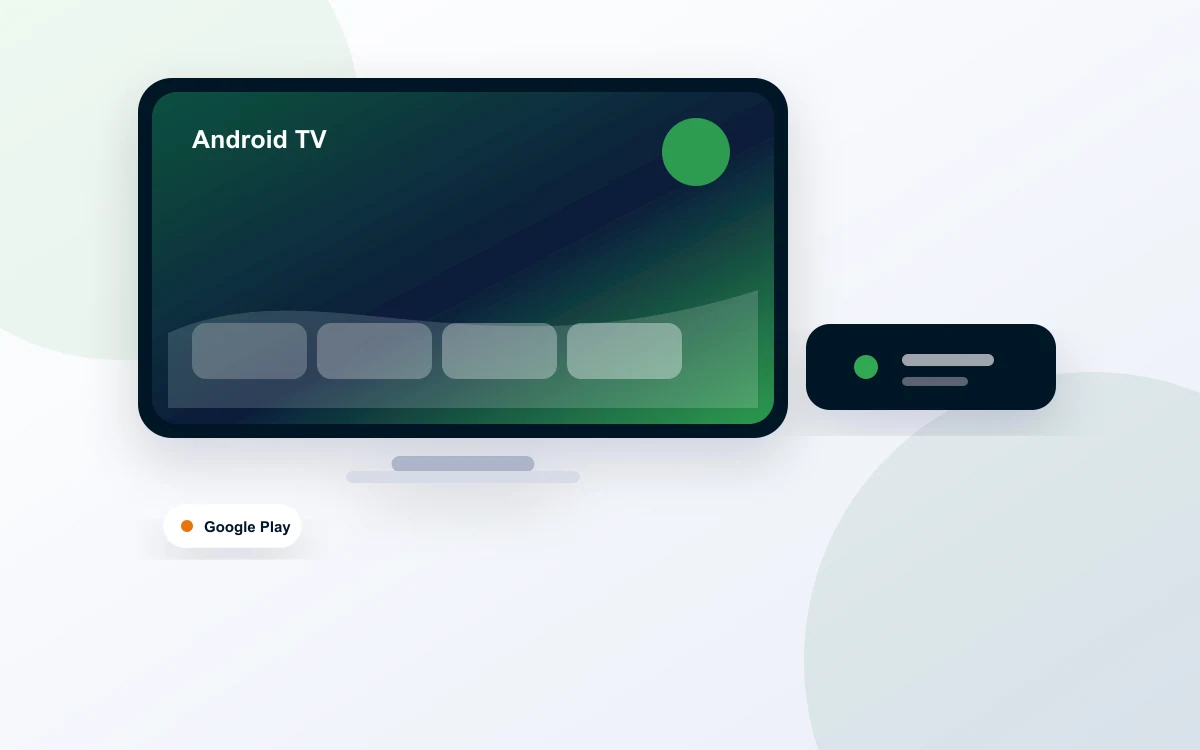
Google TV devices (the Google TV Streamer, Sony and TCL TVs with Google TV, and Google TV boxes) use the Google Play Store, which carries the main IPTV player apps directly. There is no need to change any settings to install them. The Google TV Streamer was still £99 on Google's UK store at the time of writing.
4. Choose a Fire TV that still runs Fire OS
If you like the Fire TV menus and remote, the Fire TV Stick 4K Plus and 4K Max still run Fire OS at the time of writing. Amazon raised its UK list prices in September 2026, with reports putting the 4K Plus at £79.99 and the 4K Max at £99.99, but both are frequently discounted. Check the current price on amazon.co.uk before you buy.
Bear in mind Amazon has said all future sticks will be Vega. A Fire OS stick bought now should keep working for years, but when it eventually needs replacing, the replacement stick will probably not be Fire OS.
5. Return it, if you only just bought it
Amazon devices bought directly from amazon.co.uk can usually be returned within 30 days of arrival, as long as they are in new condition. Check the conditions on Amazon's returns page. If you bought from another shop, their own returns policy applies.
If you are buying a Fire TV for IPTV in 2026
Here is the short version for anyone standing in a shop, or scrolling Amazon, right now.
- Check the exact model name. "4K Select" and the newest "HD" are Vega. "4K Plus", "4K Max" and "Cube" are Fire OS at the time of writing.
- Ignore the word "newest". On Fire TV it now means Vega.
- Buy from Amazon or a mainstream UK retailer. Not a marketplace seller offering a stick "with everything set up". Those are often older models loaded with apps from unofficial sources, and Amazon has said it blocks apps known to be used for piracy, so you may find half of it stops working.
- Think about the next few years. If you want a device family that keeps the full range of player apps, a Google TV device avoids the Vega question altogether.
For a wider look at sticks, boxes and TVs side by side, see our guide to the best IPTV device in the UK.
If your Firestick is Fire OS: nothing changes today
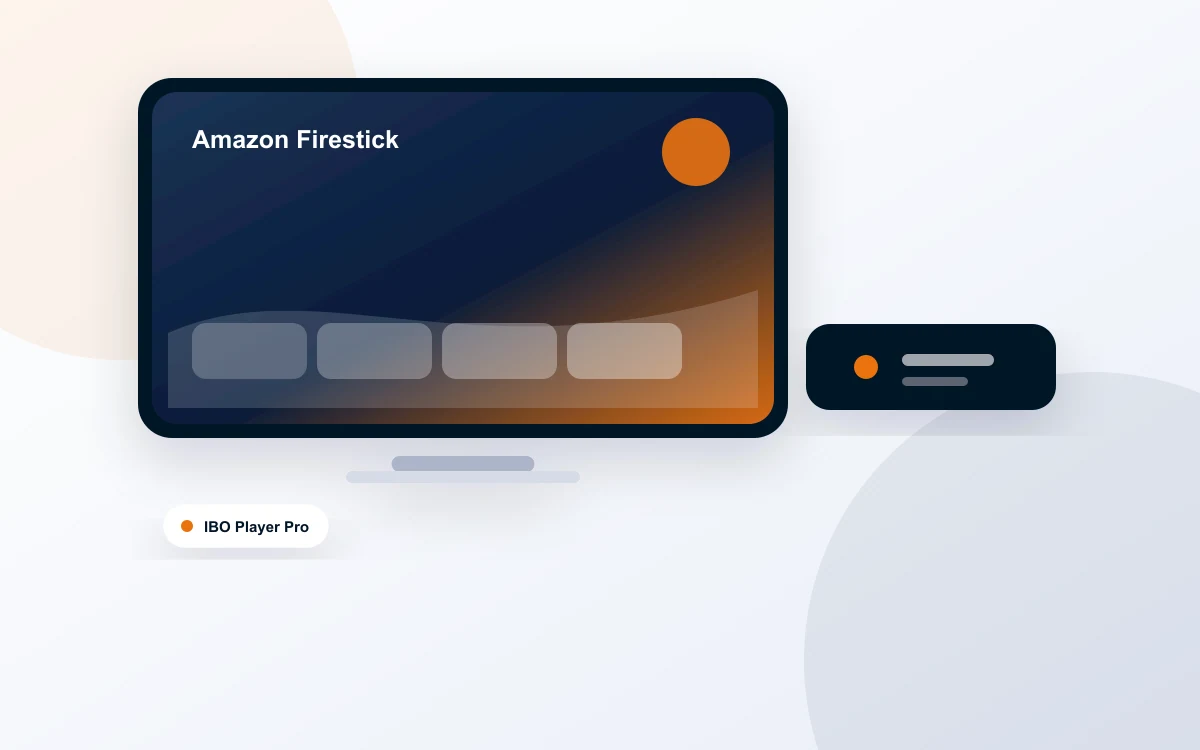
If the About screen says Fire OS, carry on as you are. Amazon has not announced any plan to switch existing Fire OS sticks to Vega. Apps you installed from the Appstore or the developer's official site keep working, and Amazon keeps sending updates for supported models.
It is worth tidying up while you are in the settings, though. Old sticks slow down when storage is nearly full, so uninstall apps you never open. Restart the stick now and then by holding Select and Play/Pause together for a few seconds. If you get buffering at busy times, a wired connection or moving the router closer usually helps more than anything else.
If you want to compare player apps before settling on one, our round-up of the best IPTV player apps in the UK covers what each one is like to use.
Try it on your own telly first
The simplest way to find out what works on your particular stick or TV is to try it. BingeBear offers a free 24-hour trial with no card and no contract. Send a name and your WhatsApp number from the free trial page, and you get a login back to test on your own device before paying anything.
When you message us, tell us your Fire TV model and what the About screen says. The team will talk you through installing the right app over WhatsApp, step by step, whether your stick turns out to be Fire OS or Vega.
Frequently asked questions
What is Vega OS on a Firestick?
Vega OS is the new operating system Amazon uses on its newest Fire TV Sticks. It is built on Linux rather than Android, which is what older Fire TV devices use. Apps start quickly and the menus feel snappy, but you can only install apps from the Amazon Appstore, and the Appstore on Vega has a smaller range than on older Fire TV models.
Which Firestick still supports sideloading in the UK?
At the time of writing, the Fire TV Stick 4K Plus, the Fire TV Stick 4K Max, the Fire TV Cube and TVs with Fire TV built in all run Fire OS, which still allows apps from outside the Amazon Appstore. The Fire TV Stick 4K Select and the 2026 Fire TV Stick HD run Vega OS and do not. Amazon says all future sticks will use Vega.
How do I check if my Fire TV Stick has Vega OS?
Go to Settings, then My Fire TV (called Device and Software on some models), then About. Look at the software version line. If it says Fire OS followed by a number, you have the Android-based system. If it just says OS and the number starts with 1, you have Vega OS.
Can I use IPTV on a Vega OS Fire TV Stick?
Only through player apps that are listed in the Amazon Appstore on that device, and the choice is narrower than on older models. Search the Appstore for the app your provider recommends. If it is not there, the practical options are the apps built into your smart TV, a Google TV device, or a Fire TV model that still runs Fire OS.
Will my older Firestick stop working because of Vega?
No. Vega only comes on new devices, and Amazon has not announced any plan to move existing Fire OS sticks over to it. Your current stick keeps working as it does today and keeps receiving Amazon updates for as long as Amazon supports that model. Amazon has also said it blocks apps known to be used for piracy on Fire OS, so stick to reputable player apps.
Should I buy a Fire TV Stick 4K Select for IPTV?
For most people using IPTV, no. It runs Vega OS, so you are limited to whatever player apps Amazon lists for it. If you want a Fire TV, the 4K Plus or 4K Max still run Fire OS at the time of writing. A Google TV device is the other sensible choice, because the main player apps are in the Google Play Store.