
Set up IPTV on Firestick: device checklist
If you want to set up IPTV on Firestick in 2026, you’re in the right place. The Amazon Firestick is hands down the most popular device for watching IPTV in Ireland, roughly...
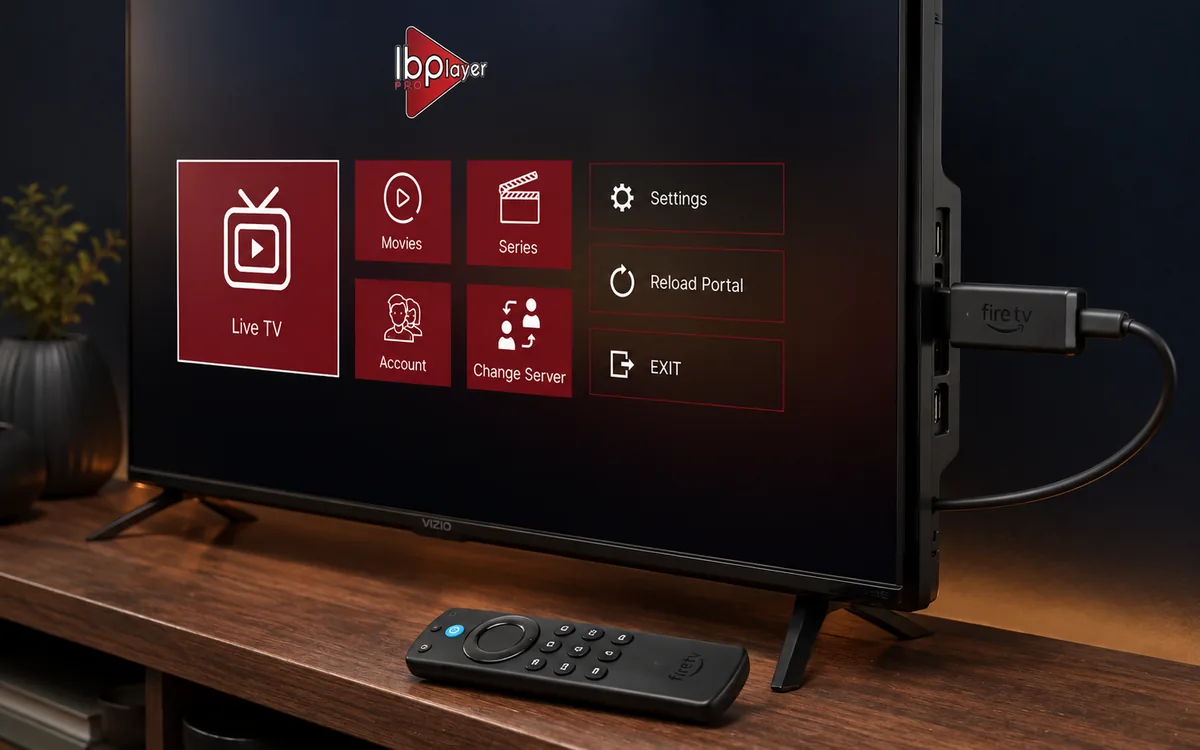
Check BingeBear on your own telly before paying.
Start a free 24-hour trial with no card. Check your channels, supported player and device, then read the current plans and activation terms.
set up IPTV on Firestick
If you want to set up IPTV on Firestick in 2026, you’re in the right place. The Amazon Firestick is hands-down the most popular device for watching IPTV in Ireland — roughly 60% of our Irish customers use one, and there’s a good reason for that. It’s cheap, it’s reliable, and the whole setup takes about five minutes from start to finish. No soldering, no computer science degree, no messing about with complicated software. If you can hold a remote control and follow a few instructions, you’ll be grand.
This guide covers everything: what you need, the exact steps to get BingeBear running on your Firestick, what to do if something goes sideways, and what you’ll actually get once it’s all sorted. We’ve helped thousands of people through this process, so we know exactly where the common hiccups are — and how to fix them in seconds.
what you need before you start
Before you start the setup, make sure you’ve got these three things sorted. Nothing fancy, nothing expensive — just the basics.
- An Amazon Firestick — any model works. The Firestick Lite, Firestick 4K, Firestick 4K Max, and the newer Firestick 4K Max (2nd Gen) all work brilliantly with IPTV. If you haven’t bought one yet, the standard Firestick 4K is the sweet spot for most people — usually around €35–50 and handles everything you’ll throw at it.
- A decent internet connection — you’ll want at least 10 Mbps for standard definition and live channels. For HD and 4K content, 25 Mbps or above is ideal. Most Irish broadband connections are well above this, but if you’re on a slow rural connection, it’s worth checking. You can test your speed at speedtest.net from your phone or laptop.
- A BingeBear free trial — we offer a free 24-hour trial so you can test the full service before spending a cent. No card details, no commitment, no catch. Just head to /trial and we’ll get you sorted. You’ll also need WhatsApp on your phone to send us your device’s MAC address during setup.
That’s it. Three things. If you’ve got a Firestick plugged into your telly, half-decent broadband, and a phone with WhatsApp, you’re ready to go.
step-by-step: set up IPTV on your Firestick
Right, here’s the full walkthrough. We’ve broken it into numbered steps so you can follow along at your own pace. The whole process takes about five minutes — possibly less if you’re a quick reader.
step 1: enable apps from unknown sources
The IPTV player app isn’t available on the Amazon App Store, so you’ll need to tell your Firestick it’s okay to install apps from outside the store. This is completely safe and standard — millions of people do it.
- From your Firestick home screen, navigate to Settings (the gear icon, top right).
- Scroll across and select My Fire TV.
- Select Developer Options.
- Turn on Apps from Unknown Sources (on newer Firestick models, this might be labelled Install Unknown Apps).
- If a warning pops up, select Turn On. This just means Amazon wants you to confirm — it’s perfectly fine.
Can’t see Developer Options? Don’t panic. On newer Firestick firmware, Amazon hides this menu by default. Go to Settings → My Fire TV → About, then click on your device name 7 times in a row. You’ll see a wee message saying “You are now a developer.” Go back one screen and Developer Options will appear. It sounds daft, but that’s genuinely how it works.
step 2: install the Downloader app
Downloader is a free app from the Amazon App Store that lets you download files directly to your Firestick. It’s the bridge between you and the IPTV player app.
- Go back to the Firestick home screen.
- Select the Search icon (magnifying glass, top left).
- Type Downloader.
- Select the Downloader app from the results — it’s the one with the orange icon.
- Click Download or Get to install it.
- Once it’s installed, click Open.
step 3: enter the download code and install the APK
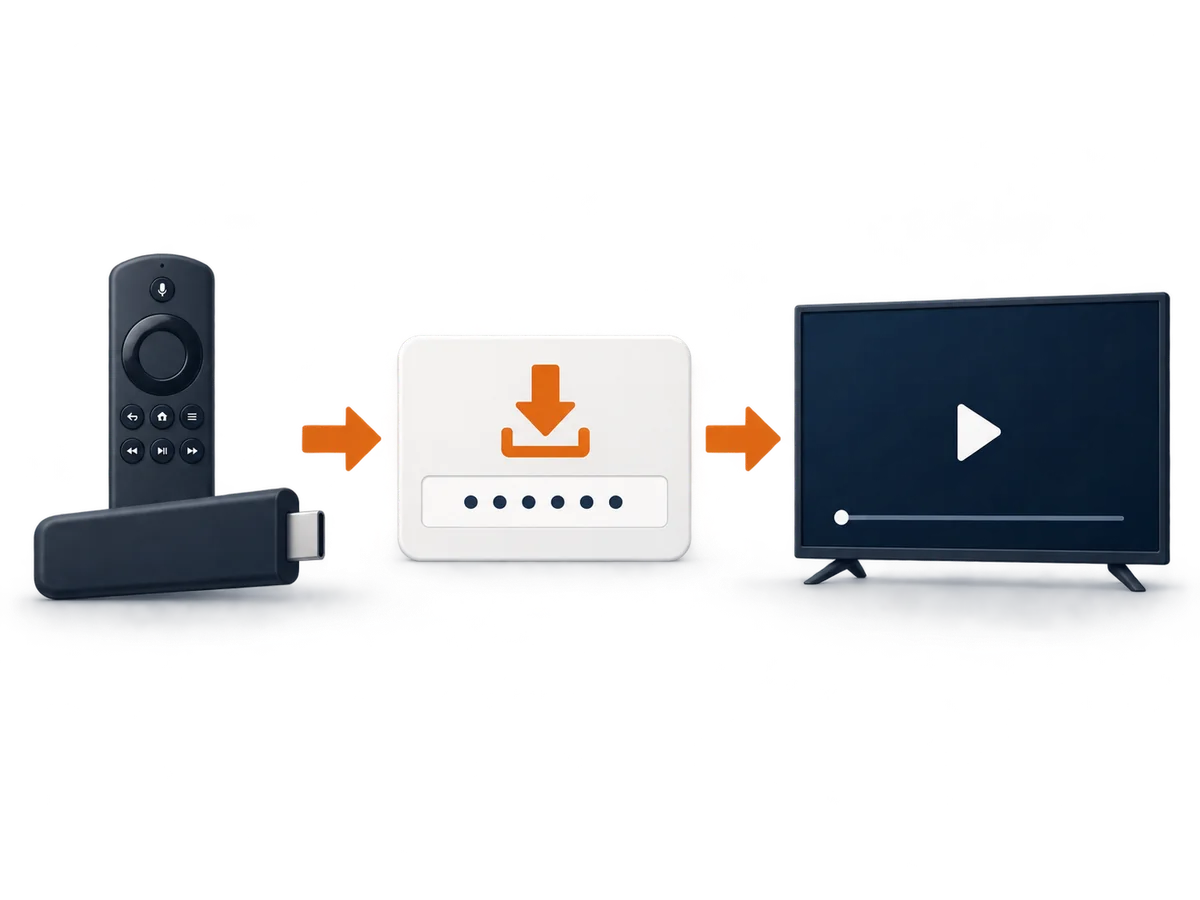
When Downloader opens, you’ll see a text field in the middle of the screen where you can type a URL or a code. This is where the magic happens.
- In the code field, type: 6402995
- Click Go.
- The IPTV player app (IBO Pro Player) will start downloading. It’s a small file, so it shouldn’t take more than 30 seconds even on a slow connection.
- When the download finishes, you’ll see an Install button. Click it.
- Once installed, click Done — not Open. We’ll come back to the app in a moment.
Backup codes: If code 6402995 doesn’t work for any reason (sometimes codes rotate or get temporary issues), try these alternatives:
- 923441
- 1171959
- 815778
One of those will definitely work. If you’re still stuck, message us on WhatsApp and we’ll send you a direct download link.
step 4: open IBO Pro Player and get your MAC address
- Go back to the Firestick home screen.
- Scroll down to Your Apps & Channels — you might need to select See All to find the newly installed app.
- Open IBO Pro Player.
- The app will display a screen with your MAC address — it’s a code that looks something like 00:1A:79:XX:XX:XX.
- Grab your phone and take a photo or screenshot of this screen. Make sure the MAC address is clearly visible.
step 5: send your MAC address screenshot to WhatsApp
- Open WhatsApp on your phone.
- Send the screenshot of your MAC address to us at our WhatsApp.
- If you’re on a free trial, just say “free trial please” along with the screenshot. BingeBear offers four one-off subscriptions: 6 months for €70, 10 months for €100, 24 months for €180, and Lifetime for €300 with six years of guaranteed service. The 6- and 10-month plans add €15 per player for initial activation, and buying two subscriptions gets a third account free on every plan. Neither plan renews automatically.
step 6: wait for activation
Once we receive your MAC address, we activate your account on our end. During business hours, this usually takes just a few minutes. Outside of business hours, it might be a wee bit longer, but we’ll always get back to you the same day.
You’ll get a WhatsApp message from us confirming you’re activated and ready to go.
step 7: close the app and reopen after 2 minutes
This is the step people sometimes skip, and it matters.
- Fully close IBO Pro Player on your Firestick. Don’t just press the Home button — press and hold the Back button to properly close the app.
- Wait about 2 minutes. This gives the activation time to sync with the servers.
- Reopen IBO Pro Player.
- Your channels, movies, series, and sports will all load up automatically. You’re sorted.
That’s it. Seven steps, five minutes, and you’ve got 54,000+ live channels on your telly. Put the kettle on.
what you get once it’s set up
Once your Firestick IPTV setup is done and the app is activated, here’s what you’re actually getting access to:
- 54,000+ live channels — every Irish and UK channel you’d expect (RTE, Virgin Media, Sky Sports, BT Sport, TNT Sports), plus channels from across Europe, North America, the Middle East, Asia, Africa, and beyond. Whatever language, whatever country — it’s there.
- every sport imaginable — Premier League, Champions League, GAA, rugby, F1, UFC, boxing, NFL, NBA, cricket, tennis. If it’s being broadcast somewhere in the world, you can watch it. No more hunting for dodgy streams that buffer at the worst possible moment.
- 168,000+ films and 44,000+ series — movies and series from every genre. New releases show up fast. Think of it as Netflix, Disney+, and Amazon Prime all rolled into one, except it’s a fraction of the cost and the library is significantly larger.
- catch-up and replay — missed something? Most channels have catch-up built in, so you can go back and watch what you’ve missed from the last few days.
- EPG (electronic programme guide) — a proper programme guide so you can see what’s on now, what’s coming up next, and plan your evening. No more channel-surfing blindly.
BingeBear offers four one-off subscriptions: 6 months for €70, 10 months for €100, 24 months for €180, and Lifetime for €300 with six years of guaranteed service. The 6- and 10-month plans add €15 per player for initial activation, and buying two subscriptions gets a third account free on every plan. Neither plan renews automatically. Compare that to Sky at €60–100+ a month, and the maths speaks for itself.
“Switched from Sky two years ago and haven’t looked back. The Firestick setup took me about 3 minutes and I’ve got more channels than I know what to do with. Best decision I’ve made.” — verified BingeBear customer
try the full BingeBear library free
free 24-hour trial · no card needed · no automatic renewal
See Trustpilot for the current rating and latest independent reviews.
troubleshooting common Firestick IPTV issues
We’ve seen every Firestick issue under the sun. Here are the most common ones and how to fix them straight away.
download code not working
If you type in 6402995 and nothing happens, or you get an error message, try these things:
- Make sure you’re typing the code into the URL/code field in the Downloader app — not the Amazon search bar. Common mix-up.
- Check there are no extra spaces before or after the code.
- Try the backup codes: 923441, 1171959, or 815778.
- If none of the codes work, the Downloader app might need updating. Go to the Amazon App Store, find Downloader, and check for updates.
- Still stuck? Message us on WhatsApp and we’ll send you a direct URL to paste into Downloader instead.
no channels showing after activation
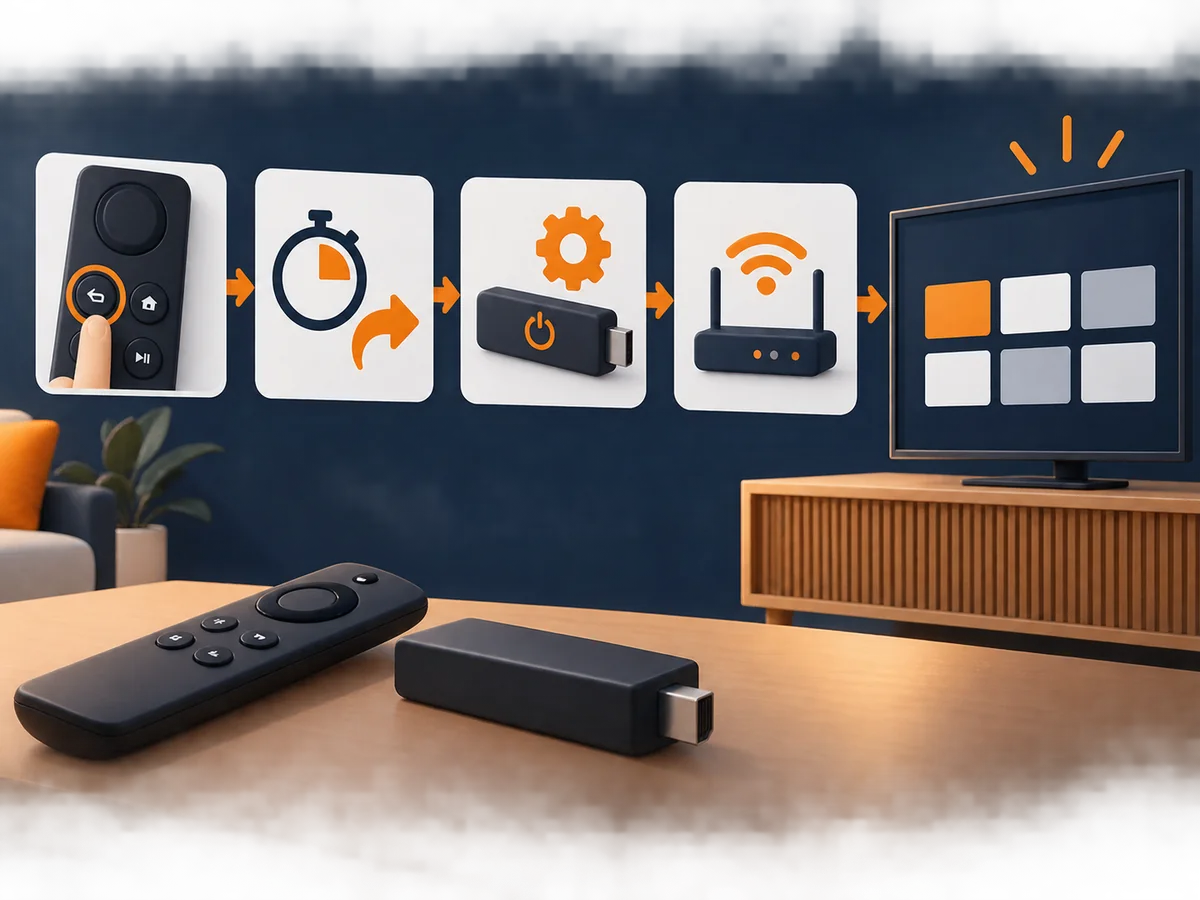
This is almost always because the app wasn’t fully closed and reopened after activation.
- Fully close the app — press and hold the Back button on your Firestick remote until the app closes. Don’t just press Home.
- Wait 2 minutes, then reopen the app.
- If channels still don’t load, restart your Firestick: go to Settings → My Fire TV → Restart.
- Make sure your internet connection is working — open YouTube or another app to check.
- If you’re still seeing nothing, double-check with us on WhatsApp that your MAC address was activated. Sometimes people send a blurry photo and we might have a digit wrong.
buffering or freezing during playback
Buffering is nearly always an internet issue, not a BingeBear issue. Here’s how to sort it:
- Check your speed — you need at least 10 Mbps for live channels, 25 Mbps for HD. Run a speed test on your phone while connected to the same Wi-Fi.
- Move your Firestick closer to the router — or better yet, use an ethernet adapter. Amazon sells an official one for about €15. Wired connections are always more stable than Wi-Fi for streaming.
- Clear the app cache — go to Settings → Applications → Manage Installed Applications, find IBO Pro Player, and select Clear Cache.
- Restart everything — restart your Firestick and your router. The classic “turn it off and on again” works more often than you’d think.
- Check for other devices hogging bandwidth — if someone’s downloading a game update or streaming on three other devices, that’ll eat into your available speed.
app asking for payment or subscription
If IBO Pro Player is asking you to pay for something inside the app, you’re probably looking at the app’s own subscription prompt — not BingeBear. Here’s what to do:
- Ignore any in-app payment screens. Your BingeBear access plan is managed through us directly via WhatsApp — not through the app itself.
- If the app is blocking you from getting to your channels, close it fully, wait a minute, and reopen. The payment prompt usually only appears before activation.
- Once your MAC address is activated on our end, the app should load your channels without asking for anything.
developer options hidden on newer Firestick
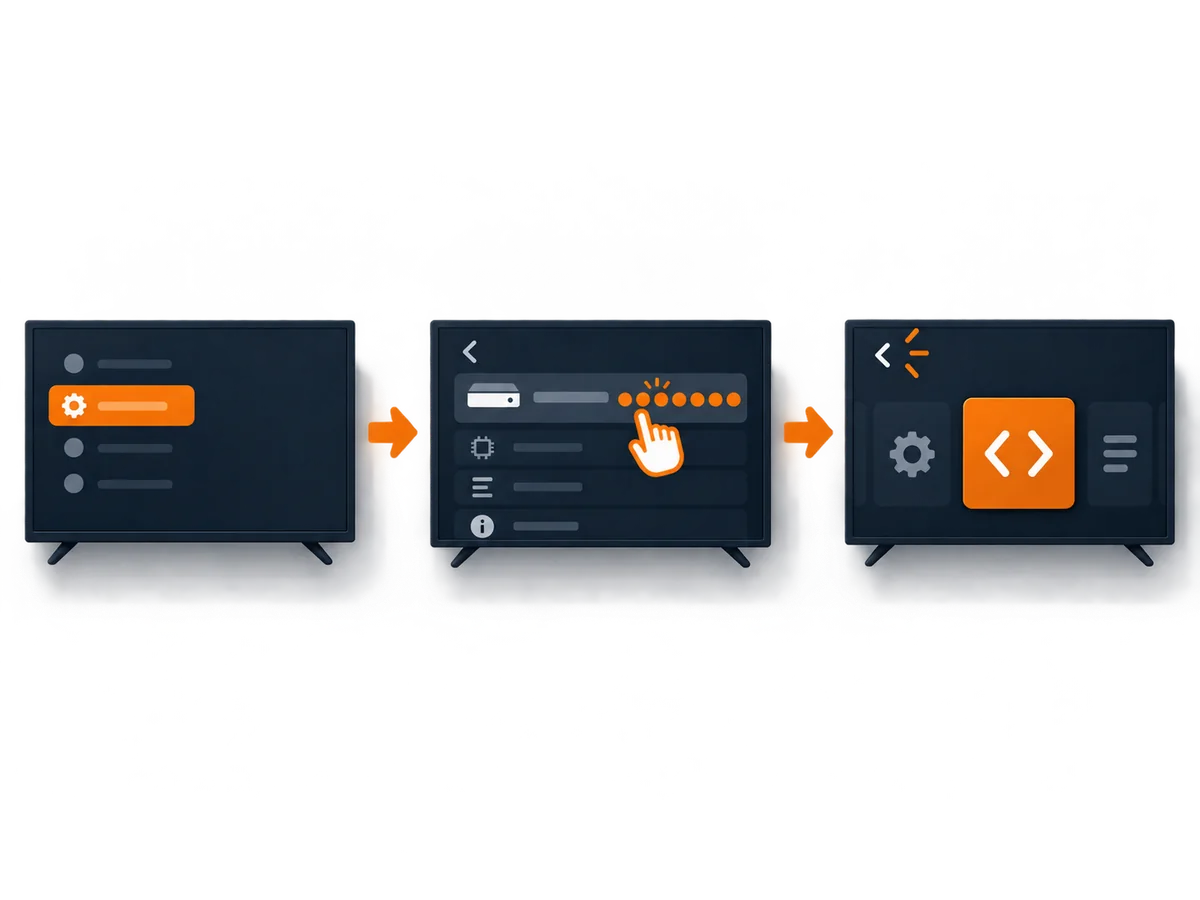
Amazon started hiding Developer Options on newer Firestick firmware in 2024, and it’s still the case in 2026. The fix is dead simple:
- Go to Settings → My Fire TV → About.
- Click on your device name (e.g., “Fire TV Stick 4K”) 7 times in a row.
- You’ll see a message: “You are now a developer.”
- Go back one screen — Developer Options will now be visible under My Fire TV.
It’s a bit daft, but it’s the same trick Android phones have used for years. Takes ten seconds.
why BingeBear is the best IPTV for Firestick
There are dozens of IPTV providers out there, and if you’ve been looking around, you’ve probably come across a few that promise the world and then disappear after a month. Here’s why BingeBear is different — and why we’re specifically brilliant on Firestick.
- a service you can check — public reviews, published prices and support that answers. Most providers last a year or two at best. We’re still here, still growing, and still improving the service every week.
- real infrastructure — we’re not a small operation running off someone’s laptop. We have the infrastructure, the servers, and the team to handle serious numbers.
- 60%+ of our customers use Firestick — this means we’ve optimised everything specifically for the Firestick experience. The app works perfectly, the channel loading is fast, and we know every quirk of every Firestick model inside out.
- real WhatsApp support — not a chatbot, not a ticket system that takes three days to respond. You message us on WhatsApp and a real person replies. Usually within minutes.
- See Trustpilot for the current rating and latest independent reviews. People don’t leave those kinds of ratings for mediocre services.
- free 24-hour trial — we let you test the full service, all 54,000+ live channels, before you spend a single cent. No card needed. If it’s not for you, just walk away. No hard feelings.
- BingeBear offers four one-off subscriptions: 6 months for €70, 10 months for €100, 24 months for €180, and Lifetime for €300 with six years of guaranteed service. The 6- and 10-month plans add €15 per player for initial activation, and buying two subscriptions gets a third account free on every plan. Neither plan renews automatically. No hidden fees, no “premium tier” upsell, no add-on charges. One price, everything included.
- regular updates and maintenance — channels go down sometimes across all IPTV providers (that’s the nature of the business), but we fix things fast. We monitor the service constantly and push updates without you needing to do anything.
- Irish-owned and operated — we understand what Irish customers actually want to watch. Sky Sports, RTE, Virgin Media, Premier League, GAA — it’s all front and centre, not buried in a list of 168,000+ channels you’ll never use.
If you’ve been burned by other IPTV services before, we get it. That’s exactly why we offer the free trial — so you can see for yourself before committing anything.
Related Reading
- IPTV vs Netflix vs Disney+ Ireland 2026: Why Pay for Four Apps
- IPTV for Pubs and Bars Ireland: Cut Sky Costs by 70%
- Watch Boxing PPV IPTV Ireland: Complete Guide 2026
- 7 Real Reasons Irish Households Are Switching to IPTV in 2026
frequently asked questions
how long does Firestick IPTV setup take?
About 5 minutes from start to finish. The longest part is waiting for us to activate your MAC address, which usually takes just a few minutes during business hours. The actual installation and configuration on your Firestick is closer to 2–3 minutes.
do I need to jailbreak my Firestick?
No. You don’t need to jailbreak, root, or modify your Firestick in any way. All you’re doing is enabling “Apps from Unknown Sources” (which is a built-in Amazon setting) and installing an app via the Downloader app. Your Firestick stays exactly as it is — all your other apps, Amazon Prime, Netflix, and everything else continue to work perfectly alongside BingeBear.
what Firestick models work with IPTV?
All of them. The Firestick Lite, Firestick (3rd Gen), Firestick 4K, Firestick 4K Max, and Firestick 4K Max (2nd Gen) all work brilliantly. Even the older 2nd Gen Firestick handles IPTV fine, though the newer models are faster and support higher resolutions. If you’re buying new, we’d recommend the Firestick 4K — best value for money.
what if the download code doesn’t work?
Try the backup codes: 923441, 1171959, or 815778. Make sure you’re entering the code in the Downloader app’s URL/code field, not the Amazon search bar. If none of the codes work, send us a message on WhatsApp and we’ll give you a direct download URL that always works.
is there a free trial for Firestick IPTV?
Yes — we offer a completely free 24-hour trial with full access to all 54,000+ live channels, on-demand content, and sports. No card details required. Just follow the setup steps above, send us your MAC address on WhatsApp, and tell us you’d like the free trial. We’ll activate you straight away. If you like what you see, you can subscribe afterwards. If not, no worries at all. Head to /trial to get started.
try the full BingeBear library free
free 24-hour trial · no card needed · no automatic renewal
See Trustpilot for the current rating and latest independent reviews.
BB
See Trustpilot for the current rating and latest independent reviews.
free 24-hour trial
no card needed
no automatic renewal
See Trustpilot for the current rating and latest independent reviews.