
Amazon Firestick IPTV setup
Set up IPTV on Amazon Firestick in Ireland in 5 minutes: install Downloader, enter code 481220, send your MAC and Device Key on WhatsApp, and watch.
Other device guides
On Firestick? Jump to another setup.
 Samsung Smart TVIBO Player Pro
 LG Smart TVIBO Player Pro
 Sony Smart TVIBO Player Pro
 Android TVIBO Player Pro
 Android PhoneIBO Player Pro
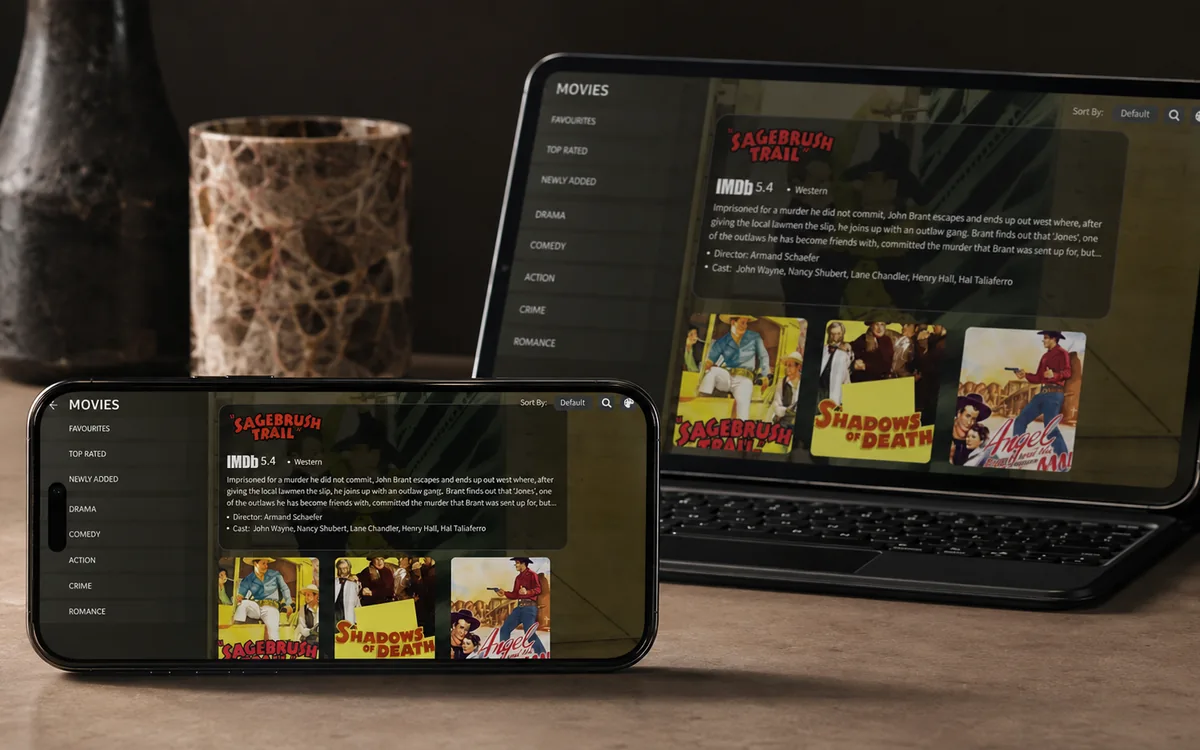 iPhone & iPadIBO Pro Player
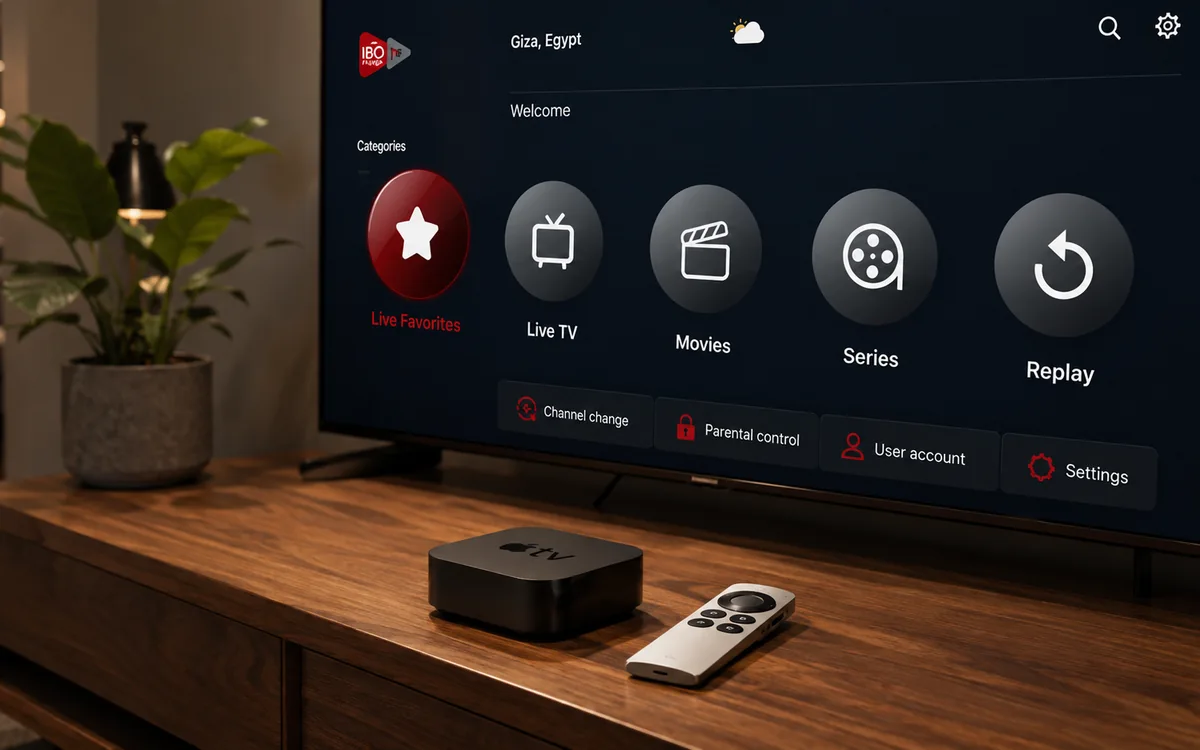 Apple TVIBO Pro Player
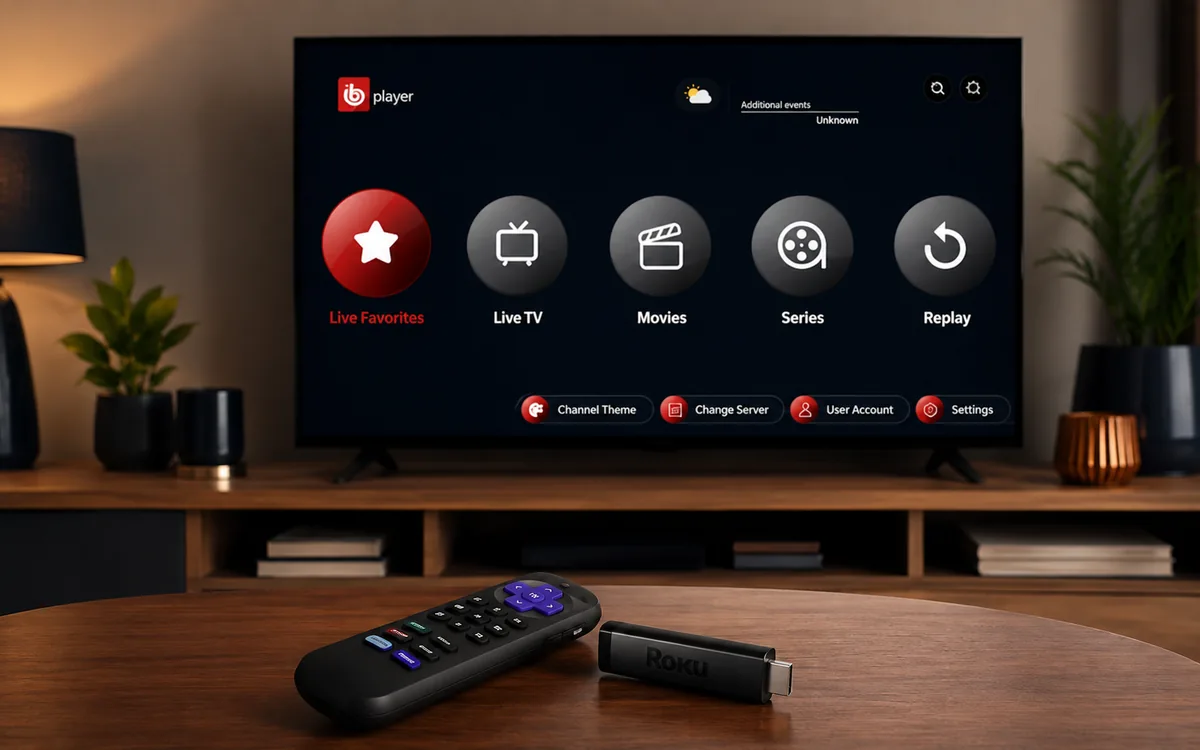 RokuIBO Pro Player
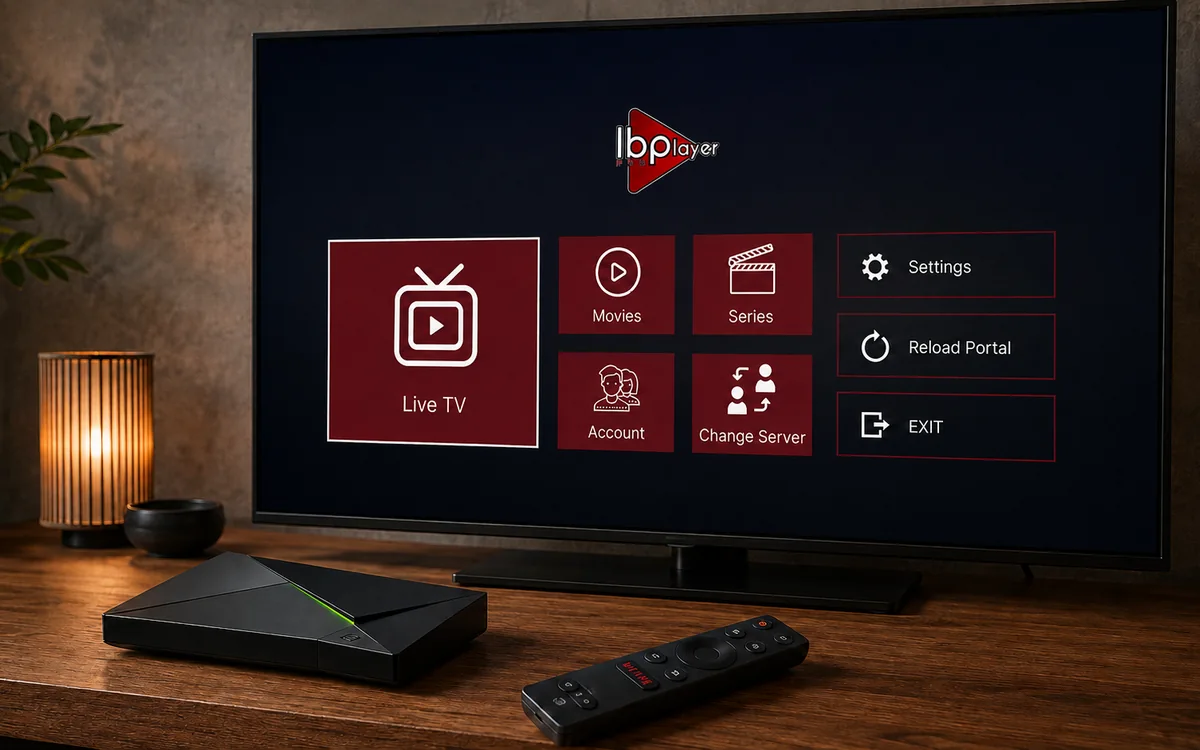 Nvidia ShieldIBO Player Pro
 Windows LaptopIBO Player
 MacIBO Player
 ChromecastGoogle TV player
 Android TV BoxIBO Player Pro
 MAG BoxPortal setup
 KodiKodi add-on
 Projector & Cinema RoomFirestick or Android box
 Best IPTV Player AppsIBO, BOB, VLC
Check BingeBear on your own telly before paying.
Start a free 24-hour trial with no card. Check your channels, supported player and device, then read the current plans and activation terms.
Want to watch IPTV on your Firestick in Ireland? This is the plain English guide to setting up IPTV Firestick Ireland in 5 minutes: install the player, send your MAC to our support agent on WhatsApp, watch.
If you have never set up IPTV before, do not worry. Most Irish households doing this are in their 50s or 60s, switching from Sky or Virgin Media, and they get sorted in about 5 minutes. The Firestick is the easiest device to set up. Once it is done, the whole family uses it the same way they always did: pick up the remote, choose a channel, sit back.
Here is what you are about to do.
What you need before you start
- An Amazon Firestick plugged into the HDMI port on your telly. Any Firestick from 2018 onwards is grand (the Vega OS exception is explained below).
- Wi-Fi at home with at least 25 Mbps download speed if you want sport in HD.
- Your BingeBear IPTV login. We send it on WhatsApp inside 5 minutes of you starting the free trial.
- 5 minutes of your time and your phone close by (you will take one photo of the telly screen).
The setup in six small steps
- Install a free helper app called Downloader from the Amazon app store. Takes about 1 minute.
- Tell your Firestick it is allowed to install apps from outside the Amazon store. One toggle in Settings.
- Open Downloader and type the number 481220. This is the official Downloader code for IBO Player Pro, the IPTV player most Irish providers use.
- The IPTV player downloads on its own and asks you to install it. You click Install.
- Open IBO Player Pro. Take a photo of the first screen with your phone (it shows a MAC address and a Device Key).
- Send the photo to our support agent on WhatsApp. They load your channel list. You restart the app. Channels appear.
That is it. No engineer to wait in for. No satellite dish to be drilled into the wall. No 18-month contract. No installation fee.
Quick check before you start: is your Firestick a Vega OS one?
If you bought your Firestick brand new in late 2025 or 2026, there is a small chance it runs a new operating system called Vega OS. Vega OS Firesticks cannot install IBO Player Pro at all, because the sideload route used in Step 1 has been removed. Take 30 seconds to check before you spend 5 minutes on the rest.
- On the Firestick remote, press the gear icon (Settings).
- Choose My Fire TV.
- Choose About.
- Look at the Software Version line.
If you see Fire OS 7 or Fire OS 8, you are grand. The steps below work as written. If you see Vega OS or no Fire OS number at all, jump to the troubleshooting section near the bottom of this page. There is a workaround that uses your phone or a cheap Android box instead.
Step 1: Install the Downloader app on your Firestick
Downloader is a free helper app published by AFTVnews. It is available straight from the Amazon app store, so no sideloading yet. This is the app that will pull IBO Player Pro onto your Firestick in Step 3.
- Pick up the Firestick remote and press the Home button (the small house icon).
- On the home menu, scroll up to the menu bar at the top of the screen.
- Click the magnifying glass on the left to open Search.
- Type the word Downloader using the on-screen keyboard, then press Search on the remote.
- Click the orange Downloader app (made by AFTVnews). Make sure it is this one and not a different app with a similar name.
- Click Get or Download. It installs in about 20 seconds.
- When the screen changes to Open, click Open. Downloader launches and asks for permission to access files. Click Allow.
Leave Downloader installed on the Firestick. You will use it every time you add a new IPTV app in the future.
Step 2: Tell your Firestick it is allowed to install apps from outside the Amazon store
By default the Firestick blocks any app that is not on the Amazon app store. This is the toggle that opens the door for Downloader to bring IBO Player Pro across.
- Press the Home button on the remote.
- Scroll up to the menu bar at the top and click the gear icon on the far right (Settings).
- Choose My Fire TV.
- Choose Developer Options.
- Open Developer Options.
- Find Install unknown apps and click it.
- Find Downloader in the list and toggle it On.
That is the only Settings change you make on the Firestick. The toggle stays on for next time.
Step 3: Open Downloader and type code 481220
Now to pull IBO Player Pro onto the Firestick. IBO Player Pro is the third-party media player most Irish IPTV providers use. The official Downloader code for it is below.
481220
- Press the Home button on the remote.
- Open the Downloader app (it is in Your Apps row at the bottom).
- You land on the Home tab. The URL box is at the top of the screen.
- Click the URL box. The on-screen keyboard appears.
- Type 481220. Press Go on the keyboard, or click the Go button in Downloader.
- The IBO Player Pro APK starts downloading. It is around 25 MB and takes 30 seconds on most home Wi-Fi.
Step 4: Install IBO Player Pro
- When the download finishes, an install prompt appears. Click Install (bottom-right of the screen).
- The install takes about 15 seconds.
- When it finishes, click Done. Then click Delete to remove the APK file from storage. The app itself stays installed. Deleting the APK saves space on the Firestick.
- Click Delete again to confirm.
IBO Player Pro is now installed. Go back to the Firestick home screen by pressing the Home button. The app appears in Your Apps at the bottom of the menu. Long-press the IBO Player Pro icon to move it to the top of the list for easier access.
Step 5: Open IBO Player Pro and photograph the MAC and Device Key
This is the most important step. The MAC address and Device Key are the unique fingerprint of your Firestick. Our support agent needs both to load your channel list onto the device.
- Open IBO Player Pro from the Firestick home screen.
- The first screen shows two lines of text: MAC address: a string like 00:1A:79:XX:XX:XX. Twelve characters separated by colons. Device Key: a shorter code, usually 6 to 10 characters of letters and numbers.
- Take a photo of the telly screen with your phone. The whole screen, not just one bit.
Step 6: Send the photo to our support agent on WhatsApp
- Open WhatsApp on your phone.
- Open the chat with our support agent.
- Send the photo of the IBO Player Pro screen. Add a short message saying which device it is (for example: "Firestick in the sitting room").
- Our support agent logs into the IBO Player Pro provider portal and adds your playlist (Xtream Codes login or M3U URL) against your Firestick's MAC. This takes a few minutes on their side.
- They reply when the playlist is loaded.
- Close IBO Player Pro fully on the Firestick. Long-press the Home button, choose the app, and swipe up to close.
- Re-open IBO Player Pro. The channel list, programme guide, films and sport appear.
That is the whole setup. Pick a channel, sit back, watch.
How IBO Player Pro activation works (the 7-day trial and the one-off fee)
IBO Player Pro gives you a 7-day free trial after the playlist loads. The app is fully working during the trial: every channel, every match, every film.
On day 8 the app asks for a one-off device activation of around €7 to €10. This payment goes directly to IBO Solutions (the company that makes IBO Player Pro), through the official activation portal at iboplayer.pro. It is not a BingeBear charge, and it is not a recurring subscription.
The activation is permanent and locked to that Firestick's MAC address. Pay once and the player never asks again on that hardware. If you ever replace the Firestick, a new device activation applies on the new MAC, because it is a different device.
What our support agent does on their side
For your peace of mind, here is what happens after you send the photo on WhatsApp:
- They log into the IBO Player Pro provider portal with the BingeBear provider account.
- They open the Add Device section and paste in the MAC address you sent.
- They tick the Device Key box and enter the key you sent.
- They paste in your IPTV playlist. This is either an Xtream Codes login (a hostname, a username and a password) or a long M3U URL. Most use Xtream Codes because it carries the programme guide more cleanly.
- They save.
- The portal pushes the playlist down to your Firestick the next time IBO Player Pro launches.
That whole job takes a few minutes. We do it on WhatsApp while you wait.
Troubleshooting IPTV on Firestick
1. New Firestick says "Vega OS" or has no Fire OS version
Vega OS Firesticks block sideloading. There is no workaround on the device itself. Use the Firestick for Netflix and Prime Video only and watch IPTV on one of these instead:
- An Android TV box (around €30 to €60 on Amazon). Most BingeBear customers in this position move to an Android box and keep watching the same way.
- A Samsung or LG smart telly (IBO Player Pro is in both app stores).
- Your phone or iPad (IBO Pro Player is in the Apple App Store and Google Play).
If you do not know what to buy, message our support agent with the brand and model of your telly and they will tell you the cheapest route.
2. Downloader will not install: "App not available in your country"
Open Settings then My Account then Amazon Account. If your Firestick is registered to a US Amazon account but you are watching in Ireland, some apps disappear. Either register the Firestick to your Irish Amazon account, or to a UK Amazon account (Ireland and the UK share most of the same catalogue).
3. "Invalid MAC" or app stuck on the activation screen after Step 6
One character on the MAC sent to our support agent is wrong. Re-open IBO Player Pro on the Firestick, photograph the MAC and Device Key again, send the new photo. Our support agent re-loads the playlist against the corrected MAC.
4. Channels buffer or freeze, especially sport
Firestick Wi-Fi is fine for most channels but struggles with high-bitrate sport over slow broadband. Try one of:
- Move the Wi-Fi router closer to the Firestick.
- Buy a Firestick Ethernet adapter (around "15 on Amazon) and run a network cable directly to the device.
- Switch the Firestick to the 5 GHz band of your Wi-Fi instead of 2.4 GHz (Settings then Network then your Wi-Fi network).
- Drop the channel from FHD to HD. Better to watch the GAA in HD than miss the goal in FHD.
5. Programme guide (EPG) is blank for the first hour
This is normal. The programme guide takes 5 to 10 minutes to populate the first time. Leave IBO Player Pro open on the channel list and it fills in. If it is still blank after an hour, message our support agent.
6. You replaced the Firestick: do you start from scratch?
Your IPTV subscription does not need to start again. Send the new Firestick's MAC and Device Key to our support agent and they load the playlist on the new device, no extra charge from us. The IBO Player Pro one-off activation, however, is locked to the old MAC. A new device activation (€7 to €10) applies on the new Firestick.
Frequently asked questions
What is the best IPTV app for Firestick in Ireland in 2026?
For most Irish Firesticks, IBO Player Pro is the cleanest option. Downloader code 481220. It has the cleanest Fire TV layout, a 7-day free trial, and works perfectly with the BingeBear channel list. IPTV Smarters Pro and Smart IPTV (SIPTV) are alternatives, but both have had Amazon-blocking issues during 2026.
How much does IBO Player Pro cost on Firestick?
Free for the first 7 days. After that, a one-off device activation of around €7 to €10 is paid directly to IBO Solutions. It is per Firestick, paid once, and lasts forever on that device.
Is sideloading IBO Player Pro legal in Ireland?
Yes. IBO Player Pro is a third-party media player, published officially on Google Play, the Apple App Store, the Samsung store, the LG store and the Microsoft Store. The Firestick Downloader install is just an alternate route to the same app. The legality of the channels you watch depends on the IPTV subscription you sign up to, not on the player app.
Can I watch GAA, Premier League and Sky Sports on Firestick IPTV?
Yes, your BingeBear plan includes those feeds. Most Irish IPTV services include every Sky Sport channel, every GAA championship match, every Premier League fixture, every Champions League night, plus the UK and US sport feeds. They appear in IBO Player Pro the same way as RTE One or Virgin Media One.
Does the Firestick work with Saorview?
Saorview is the Irish free-to-air aerial service, separate from IPTV. The Firestick has no aerial input, so it cannot pick up Saorview directly. However, every Saorview channel (RTE One, RTE 2, Virgin Media One, TG4, RTEjr) is also carried by most Irish IPTV services, so you get them inside IBO Player Pro alongside the rest of your channels.
What is Downloader code 481220?
It is the official IBO Player Pro Android and Fire TV APK code, published at iboplayer.pro. Typing it into the Downloader app on a Firestick pulls down the IBO Player Pro installer. The ibo.al backup code (same app, alternate route) is 923441.
Can I use the same IPTV login on the Firestick and my phone?
A standard BingeBear account serves one device only. If the kitchen telly and iPad both need BingeBear, ask Joe on WhatsApp about a second account or bundle account.
How long does the whole setup actually take?
From plugging the Firestick in for the first time to watching a Premier League match: 5 to 10 minutes. Most of that is waiting for the IBO Player Pro APK to download and for our support agent to load the playlist. The bits you do yourself take less than 2 minutes total.
Once IBO Player Pro is installed on your Firestick
You should be looking at the MAC + Device Key screen on the telly. Two things need to happen before the channels appear:
- The playlist has to be loaded against that MAC on the IBO Player Pro provider portal.
- The device has to be activated after the 7-day free trial (around €7 to €10, one-off, paid to IBO Solutions).
If you are already a BingeBear customer, our support agent handles step 1 the moment you send the photo on WhatsApp. The section below is for anyone who is not a BingeBear customer yet.
Want BingeBear on your Firestick?
Send us a photo of your MAC + Device Key screen on WhatsApp and we will load the playlist for you. We have set up Firestick IPTV for thousands of Irish households. Properly sorted Irish telly: 54,000+ live channels, every Sky Sport, every GAA championship match, every Premier League fixture. Free 24-hour trial, no card needed. A real Irish person on WhatsApp walks you through the setup in real time.