
NVIDIA Shield IPTV setup
Set up IPTV on your NVIDIA Shield by installing a compatible player, connecting your service login and testing playback on your own broadband. BingeBear support can help you match the setup to your Shield model. A player app does not include channels by itself.
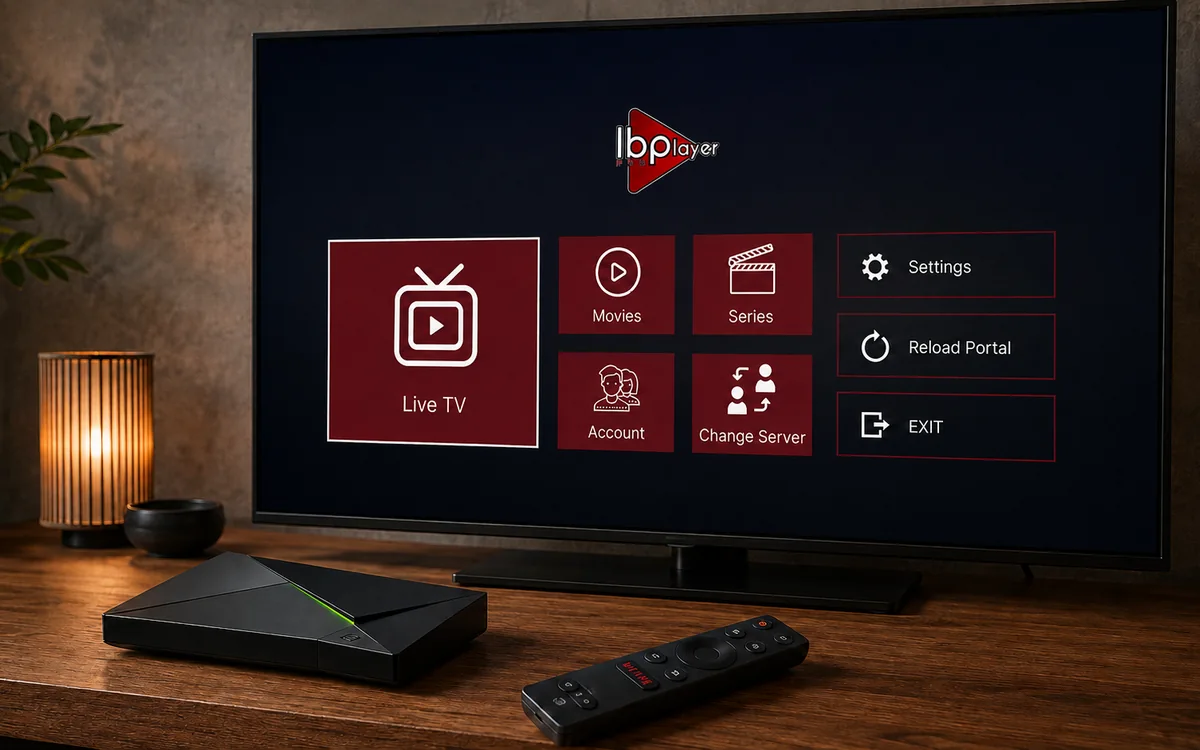
Other device guides
On Nvidia? Jump to another setup.
 Amazon FirestickIBO Player Pro
 Samsung Smart TVIBO Player Pro
 LG Smart TVIBO Player Pro
 Sony Smart TVIBO Player Pro
 Android TVIBO Player Pro
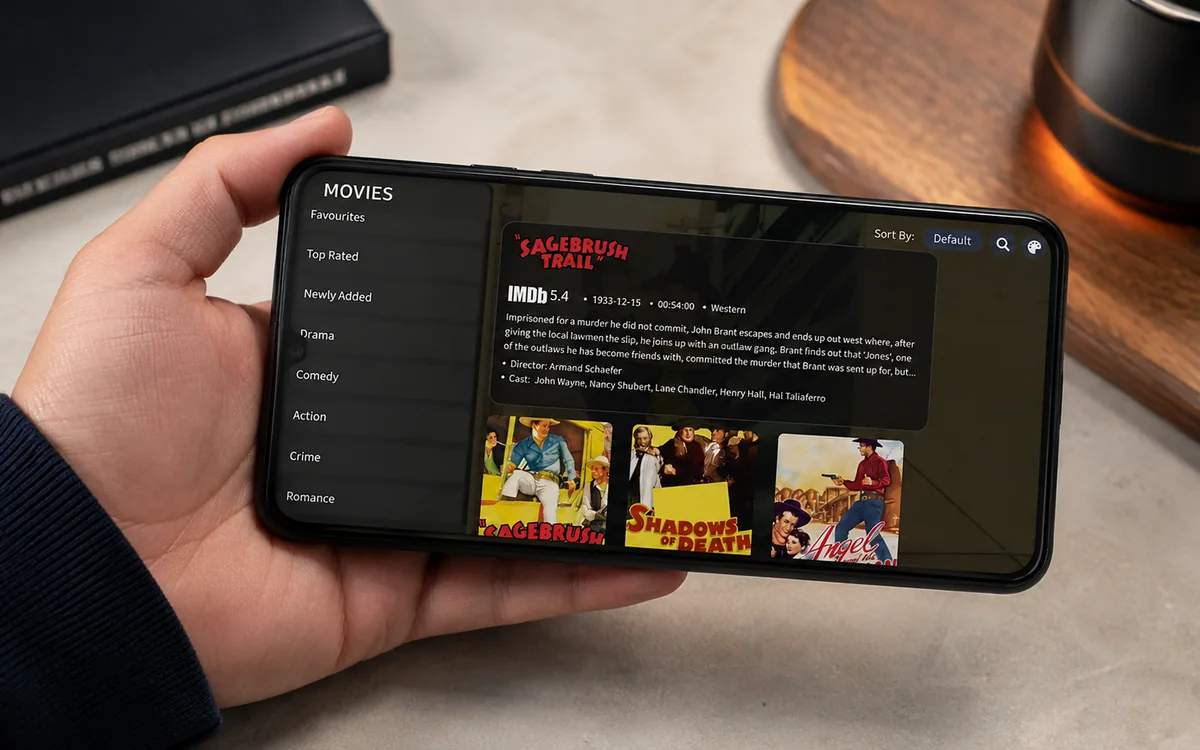 Android PhoneIBO Player Pro
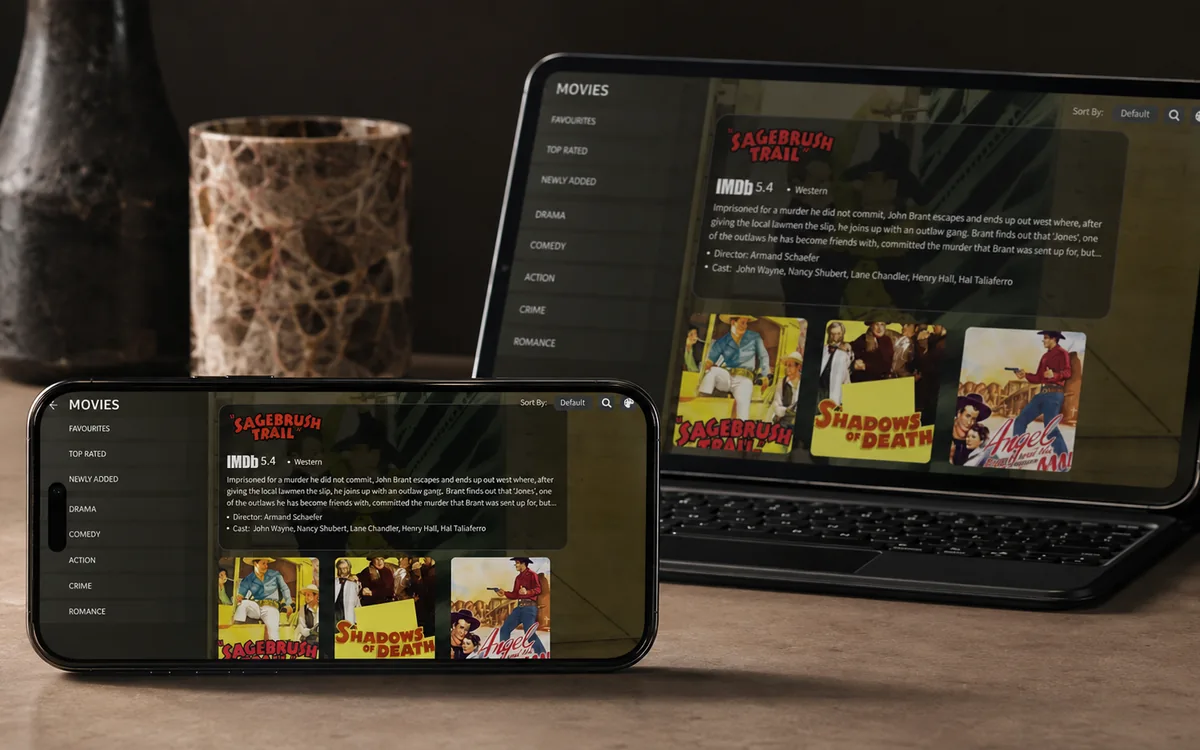 iPhone & iPadIBO Pro Player
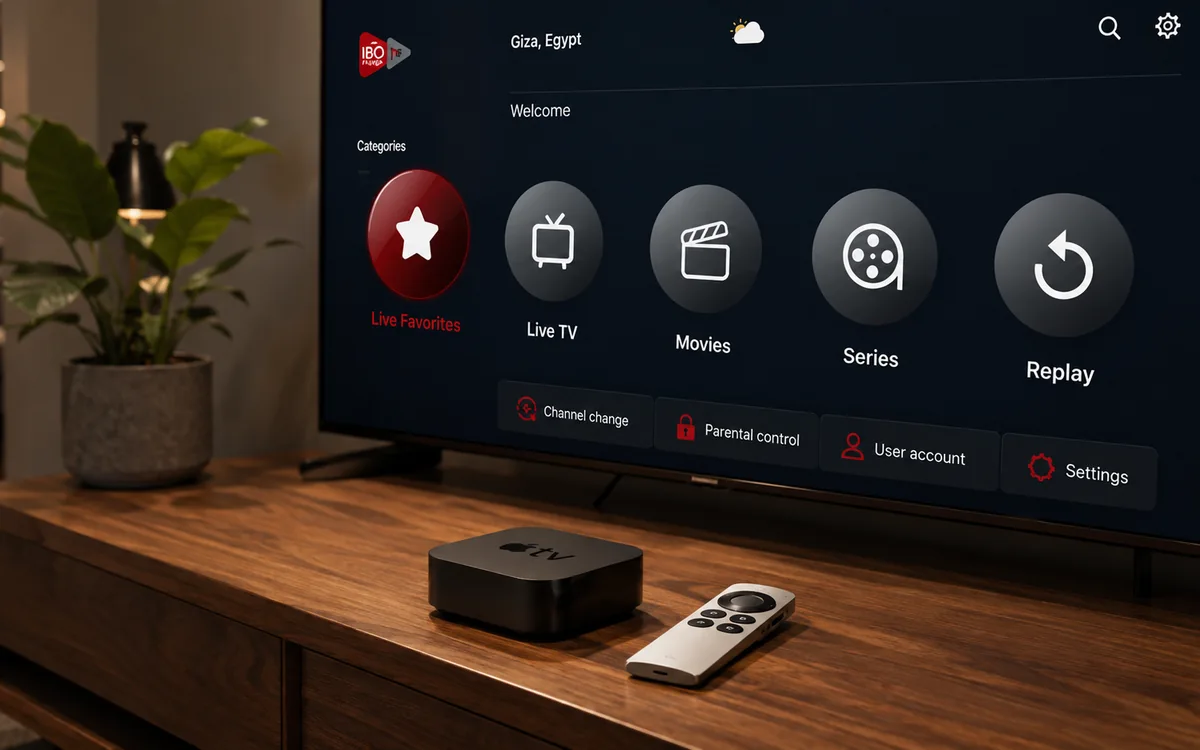 Apple TVIBO Pro Player
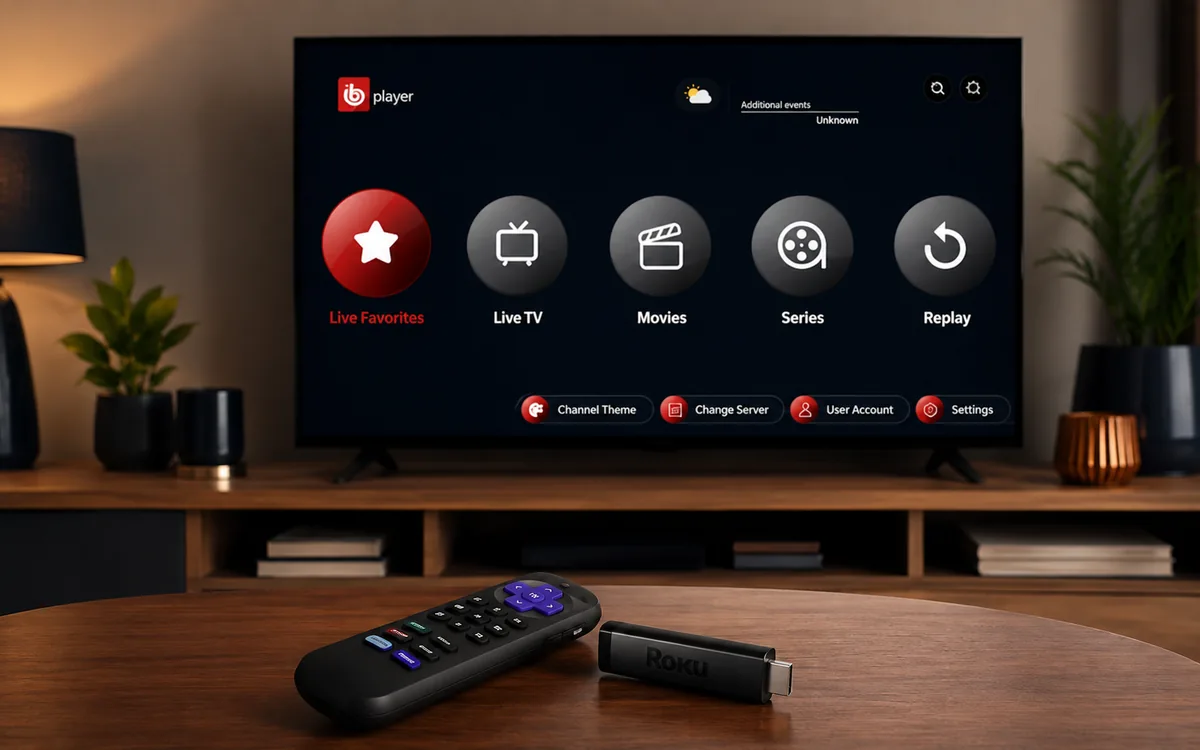 RokuIBO Pro Player
 Windows LaptopIBO Player
 MacIBO Player
 ChromecastGoogle TV player
 Android TV BoxIBO Player Pro
 MAG BoxPortal setup
 KodiKodi add-on
 Projector & Cinema RoomFirestick or Android box
 Best IPTV Player AppsIBO, BOB, VLC
Check BingeBear on your own telly before paying.
Start a free 24-hour trial with no card. Check your channels, supported player and device, then read the current plans and activation terms.
Set up IPTV on your NVIDIA Shield by installing a compatible player, connecting your service login and testing playback on your own broadband. BingeBear support can help you match the setup to your Shield model. A player app does not include channels by itself.
What you need before you start
- Your NVIDIA Shield TV or Shield TV Pro connected to the TV and internet.
- Access to Google Play on the Shield, or a download route confirmed by the app publisher.
- Your BingeBear trial or paid account details. Request a free 24-hour trial if you have not tested the service yet.
- Your phone for contacting support. Keep account details and device keys private.
The setup in four small steps
- Find a compatible player in Google Play on the Shield.
- Install it and check the app's own activation terms.
- Open the app and locate the login or device details screen.
- Follow the instructions from BingeBear support, then test your usual programmes.
What the NVIDIA Shield can and cannot do
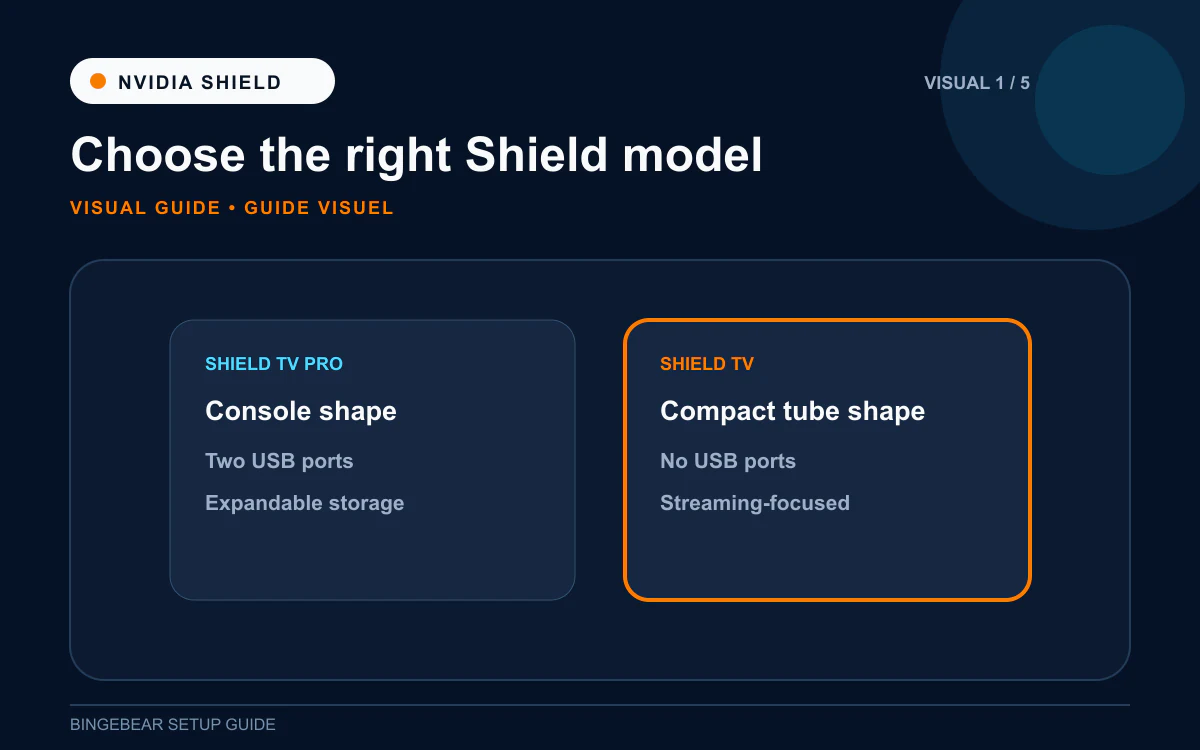
NVIDIA lists the Shield TV Pro with gigabit Ethernet and 802.11ac Wi-Fi. It is not a Wi-Fi 6 device. Check NVIDIA's specifications for your model before buying accessories or relying on a particular feature.
Ethernet can help avoid Wi-Fi interference, but no device can guarantee buffer-free playback. Upscaling also does not turn a channel into a native 4K broadcast. Test the content, sound and subtitles you want on your own connection.
Step 1: Open Google Play and search for IBO Player Pro
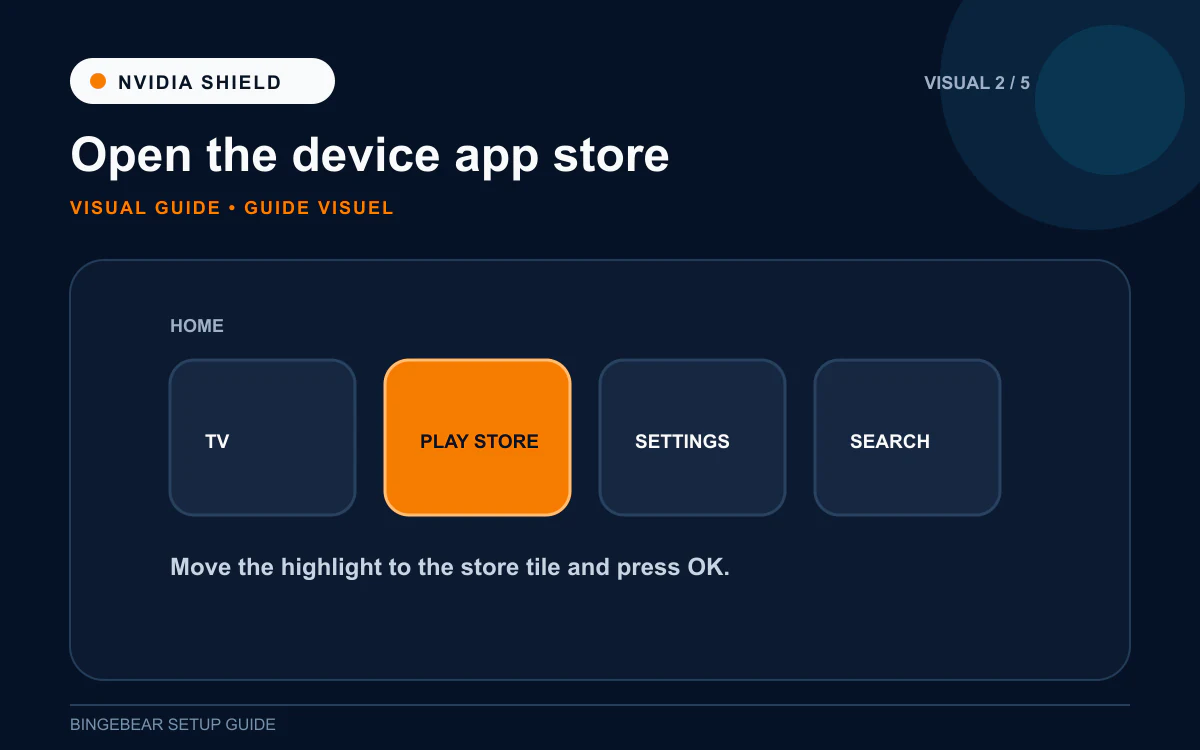
Open Google Play on the Shield and search for IBO Player Pro. Check the publisher and device compatibility before installing. If you cannot find the app, ask support for a verified alternative rather than downloading an APK from an unknown site.
The IBO Player Pro guide explains the app's role and download routes. For player-selection advice, read IPTV on NVIDIA Shield.
Step 2: Install IBO Player Pro
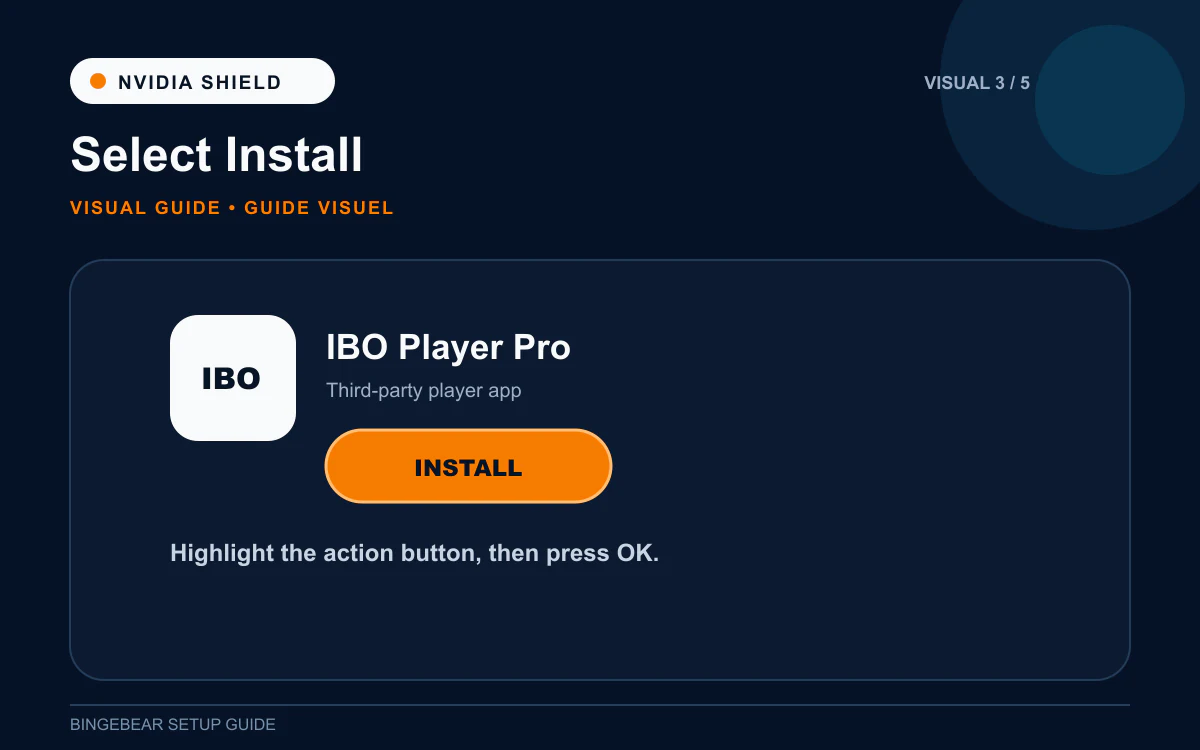
Install the compatible app and open it. Read any activation notice. The player is a third-party product with its own terms; an app payment is separate from your BingeBear plan. Ask support if you are unsure what a payment screen covers.
Step 3: Photograph the MAC address and Device Key
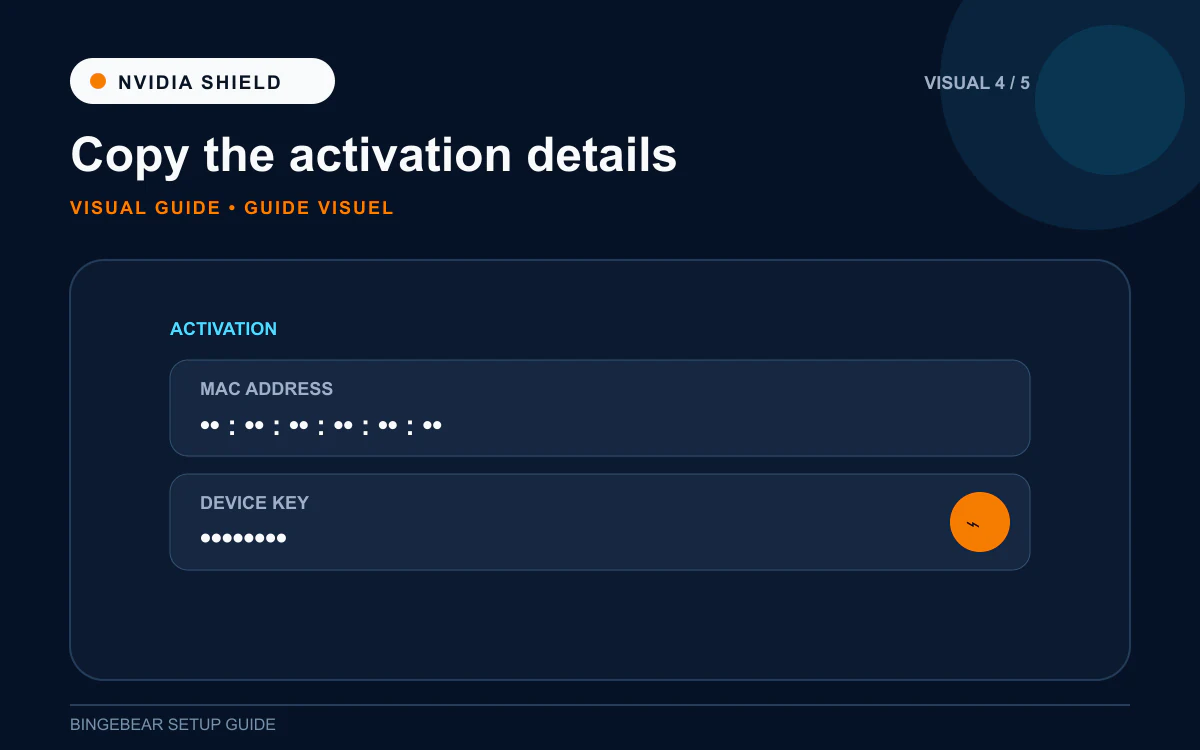
If the player displays a MAC address and device key, use the details displayed inside the app when support asks for them. Do not substitute an unrelated identifier from the router or assume every player uses the same activation process.
Send those details only in the private support conversation. Do not put them in public reviews, social posts or screenshots shared with strangers.
Step 4: Send to our support agent on WhatsApp
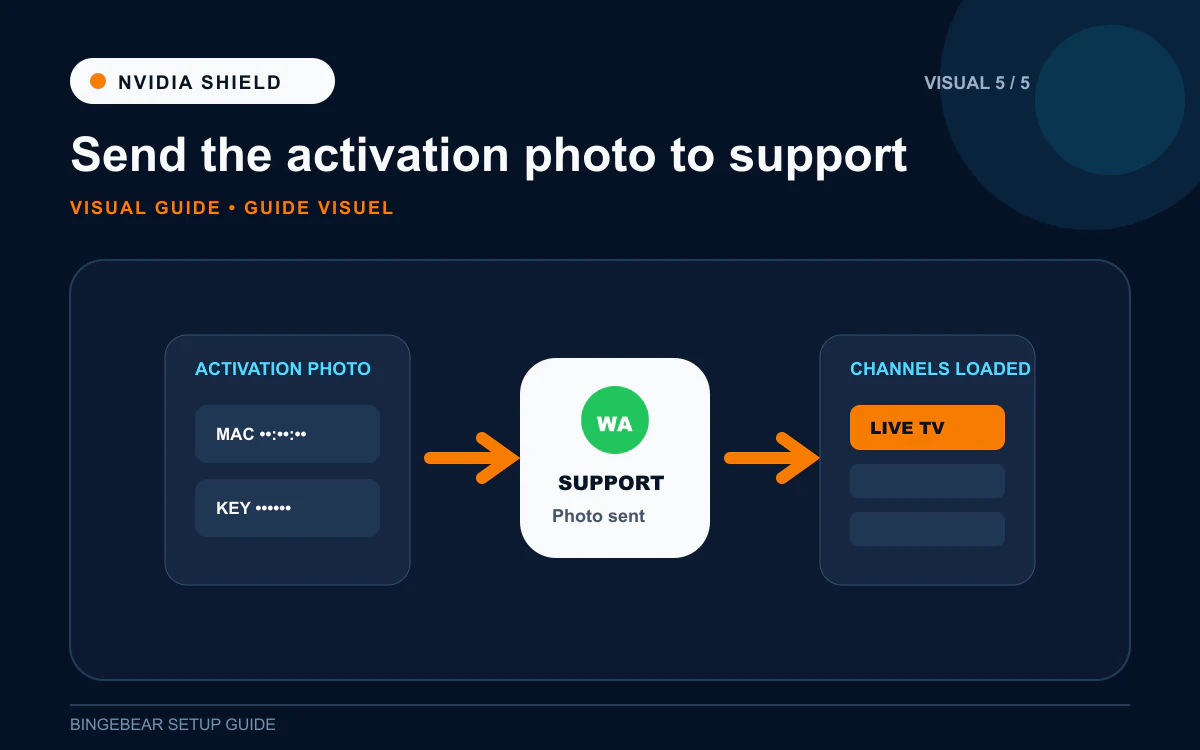
Message BingeBear on WhatsApp with your Shield model and player name. Follow the support instructions for loading your account, then reopen or refresh the app as directed.
A standard BingeBear account is for one device. If you are moving from another screen or need additional screens, explain that before changing the activation. Compare the current account options when you are ready.
Troubleshooting IPTV on Nvidia Shield
The app cannot log in
Check the login format and account status with support. Keep any spaces or punctuation in the supplied details exactly as instructed. If a device identifier has changed, send the current in-app screen privately.
Sport buffers despite Ethernet
Note the time, channel, app version and whether other streams fail too. Compare another app and connection where practical. A successful stream elsewhere is useful diagnostic information, but does not prove the problem is on a particular server. NVIDIA's network guidance can help with the local connection.
Picture or sound looks wrong
Try another programme and review the app's playback options. Change one setting at a time. Check the TV's capabilities and NVIDIA documentation before forcing a display mode. If the app closes repeatedly, note recent updates and ask support for the next step.
Questions before you pay
Does installing the app include TV channels?
No. The player and the service login are separate. Use the trial to check that both work together on your Shield.
Can I test before choosing a plan?
Yes. The Ireland trial and UK trial last 24 hours and require no card. Test the programmes you watch, on the connection you will actually use.
Which paid plan follows the trial?
Choose only if the test suits you. No plan renews automatically. See Ireland pricing or UK pricing for current prices, the three-account bundle and the Lifetime plan's written terms.